Top10VPN is editorially independent. We may earn commissions if you buy a VPN via our links.
How to Use Public WiFi Securely
Simon Migliano
Simon Migliano is a recognized world expert in VPNs. He's tested hundreds of VPN services and his research has featured on the BBC, The New York Times and more. Read full bio
Although safer than ever, public WiFi still poses some security risks you need to be aware of. By taking steps to protect yourself, through the use of a virtual private network (VPN) and changing your browsing behavior for example, you can avoid most of these dangers. In this guide, we share our latest tips on how to stay safe on public WiFi, and go into some detail about real security risks, including how hackers can intercept web traffic and steal personal data.
There are over 950 million public WiFi networks in coffee shops, malls, hotels, and on public transportation around the world.
While these networks offer convenient, often free internet access, they carry potential risks.
Thankfully, with the widespread adoption of HTTPS, public WiFi is safer than ever and many risks have been nullified.
And if you take the simple precautions outlined in this guide, you’ll enjoy an even safer experience, without falling for overstated risks often promoted by companies selling security products.
Summary: Tips on Using Public WiFi Safely
Use a VPN: The best free WiFi protection is encrypting your internet traffic with a virtual private network (VPN).
Change Your Browsing Behavior: Only connect to password-protected networks, avoid sharing any sensitive details, and ask for the official WiFi name wherever possible.
Change Your Device Settings: Disable automatic WiFi connection, turn on your device’s firewall, and stay up to date with software updates.
Enable Two-Factor Authentication: Secure your accounts from password theft by adding an extra layer of authentication for logging in.
Why Trust Us?
We’re fully independent and have been reviewing VPNs since 2016. Our ratings are based on our own testing results and are unaffected by financial incentives. Learn who we are and how we test VPNs.
VPNs Tested
61
Total Hours of Testing
30,000+
Combined Years of Experience
50+
In addition to being on top of important security precautions, it’s helpful to understand exactly how hackers intercept your web browsing activity to steal your sensitive account details.
Public WiFi is safer than ever due to HTTPS encryption and encrypted hotspots, making data interception more difficult. However, risks persist:
Compromised hotspots may expose web activity or enable device hacking.
Hacked routers can divert traffic to malicious website clones, stealing login details.
WiFi operators may monitor and share your browsing history with third parties.
To learn about these and other public WiFi risks in more detail, jump ahead to the section about the real dangers of these networks.
How a VPN Provides Extra Security on Public WiFi
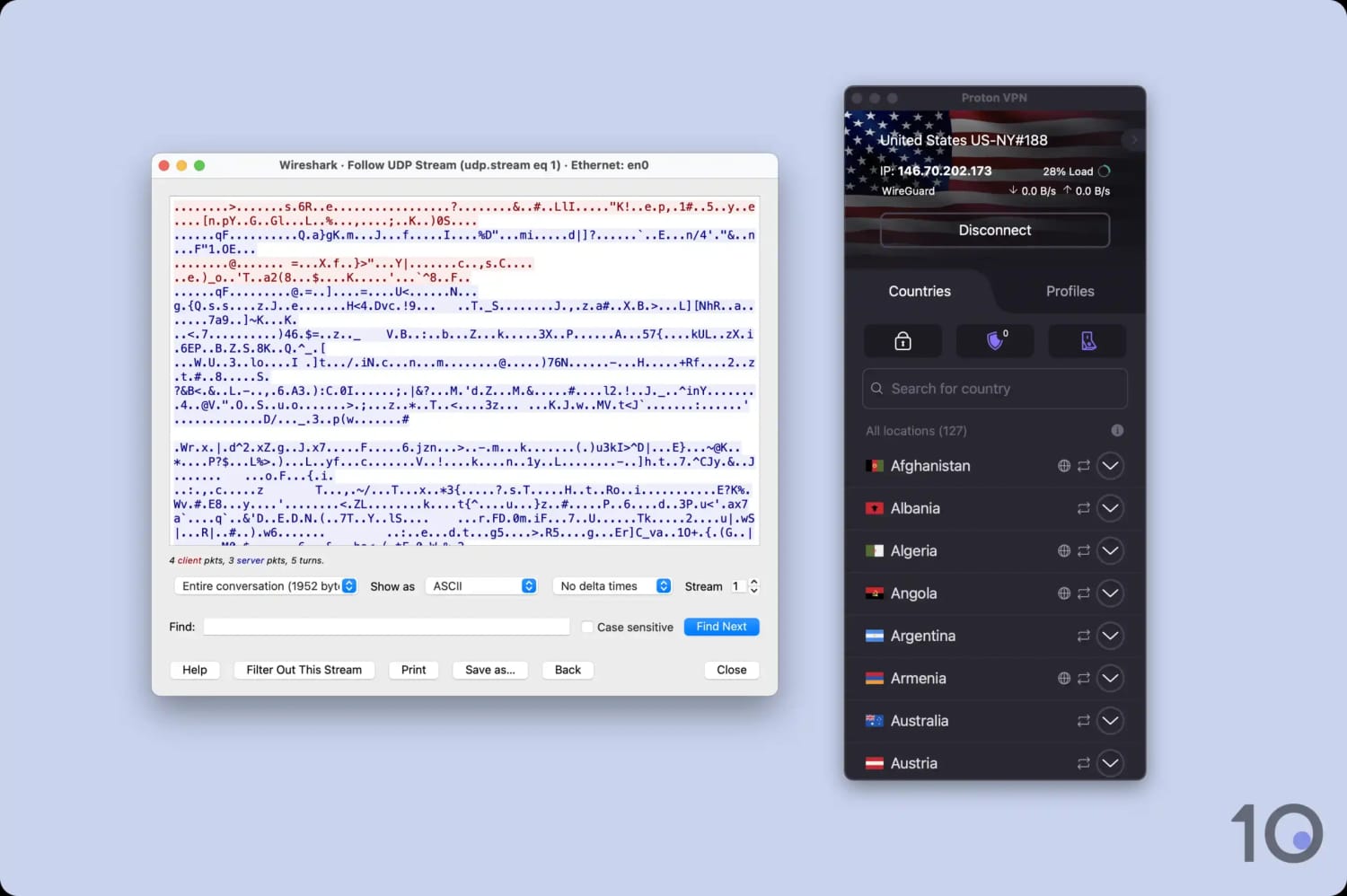
A VPN protects you on public WiFi by encrypting all your internet traffic. Anyone trying to monitor your browsing activity or intercept your data while your VPN is connected will only be able to see streams of meaningless combinations of letters and numbers.
Proton VPN encrypted our test data transfers.
VPNs can also defend against WiFi vulnerabilities, such as the recently-discovered SSID Confusion attack and other WiFi software flaws, thanks to the additional encryption they provide.
How to Protect Yourself on Public WiFi
There are several steps you can take to protect your data and device on public WiFi networks, such as using a VPN to encrypt your web traffic, changing your browsing behavior, and tweaking your device settings for better security.
1. Use a Virtual Private Network (VPN)
A VPN is the most effective security measure for regular public WiFi users.
VPNs create an encrypted tunnel between your device and a private server, preventing WiFi operators and attackers from monitoring or manipulating your traffic.
And thanks to first-party DNS servers, some VPNs also protect against DNS spoofing.
While not infallible, as VPNs can potentially be hacked, they remain an essential tool for security-conscious users on public WiFi networks.
2. Change Your Browsing Behavior
Some online activities are best avoided on unfamiliar networks, especially without a VPN. Minimizing data exposure reduces theft risk.
Things you shouldn’t do on public WiFi:
Use untrustworthy or unsecured (i.e. that don’t require a password) networks
Install software or certificates for hotspot access
Enter sensitive data, especially financial information
Public WiFi safety tips:
Use your home provider’s public hotspots when available
Verify the correct WiFi name with staff but be aware that hackers can mimic legitimate networks after forcing them offline
Prefer mobile data over public WiFi. Use your phone as a hotspot for other devices.
Ensure HTTPS is active (look for the padlock icon) and verify website addresses.
The following tweaks to your settings will make your devices far less susceptible to attacks:
Turn Off Automatic WiFi Connection
Stop your device from connecting to random hotspots by turning off the automatic WiFi connect feature and manually verify networks instead before joining them.
EXPERT ADVICE: Remember to delete public WiFi networks from your device. Keeping a lean WiFi network history reduces the risk that you’ll connect to a fake access point later on.
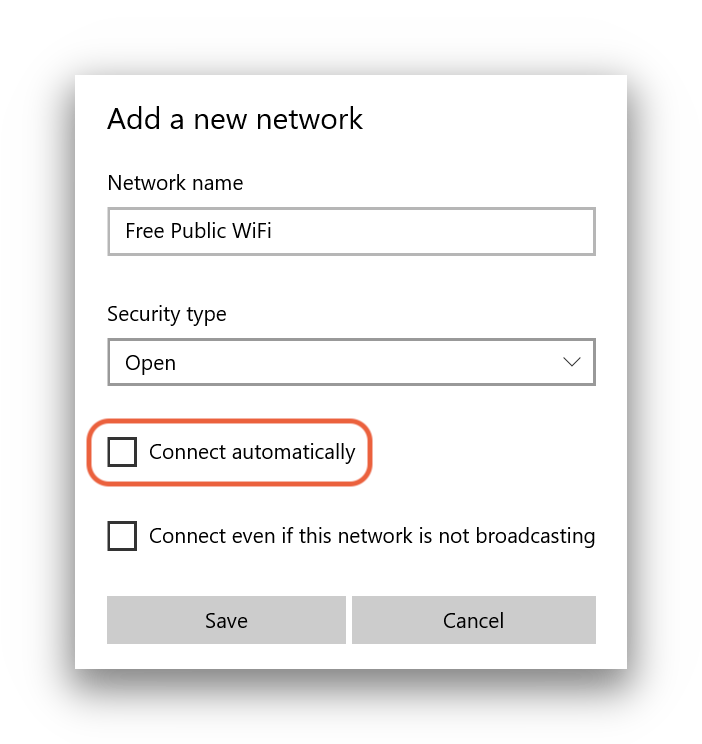
To turn off automatic WiFi connections on Windows:
Navigate to the Settings menu.
Click Network & Internet > Wi-Fi > Manage Known Networks.
Select any network you don’t want to automatically connect to.
Uncheck ‘Connect Automatically When in Range’.
How to disable automatic WiFi connections on Windows.
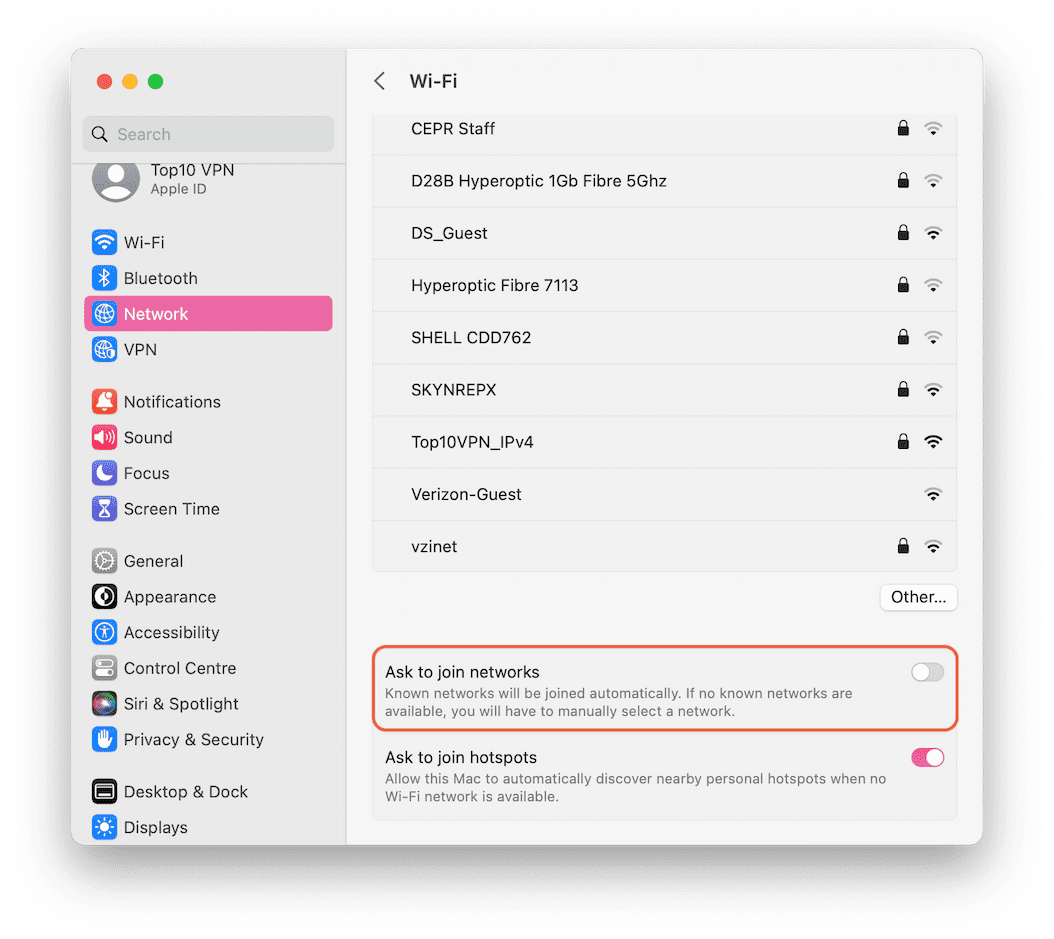
To turn off automatic WiFi connections on a Mac:
Navigate to System Preferences.
Select Network.
Select any network you don’t want to automatically connect to.
Toggle off ‘Ask to Join Networks’.
How to disable automatic WiFi connections on a Mac.
To turn off automatic WiFi connections on an iPhone or Android device
Navigate to Settings.
Tap on WiFi.
Select any network you don’t want to automatically connect to.
Toggle off ‘Auto-Join’ on iPhone or ‘Auto reconnect’ on Android.
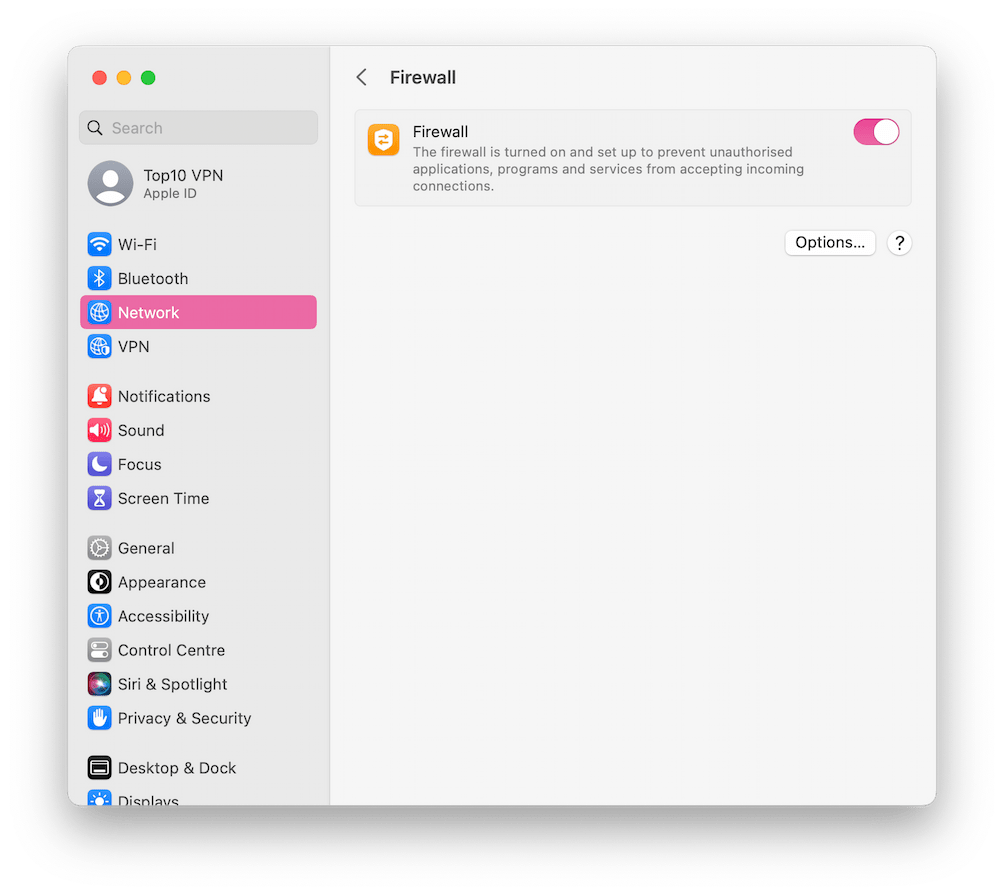
Enable Your Firewall
A firewall monitors network traffic, allowing or blocking it based on security rules to prevent unauthorized access.
Most modern computers have built-in firewalls; check to make sure that yours is active.
EXPERT ADVICE: We recommend installing trusted security software, too. Products like MalwareBytes offer real-time virus and ransomware protection, as well as malware and spyware cleanup tools.
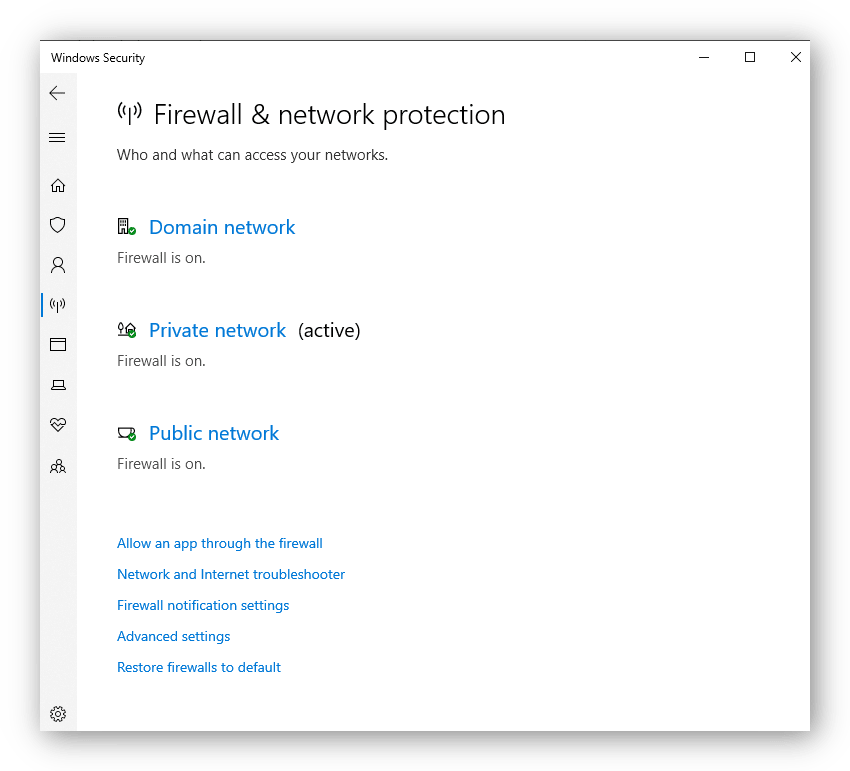
To enable the firewall on Windows:
Start > Settings.
Choose Privacy & Security.
Select Windows Security > Firewall & Network Protection.
Make sure the firewall is on.
How to enable the firewall on Windows.
To enable the firewall on a Mac:
Open System Preferences.
Navigate to Security & Privacy > Firewall.
Unlock the window by clicking the lock in the bottom-left corner.
Click ‘Turn On Firewall’.
How to enable the firewall on a Mac.
Software Updates
Keep your devices up-to-date. Most software updates are automatic and include security patches to protect against known vulnerabilities.
However, never download updates over public WiFi, as these can be fake. Instead, check for updates on a secure, private connection.
Disable Sharing
Turn off file sharing, Bluetooth and AirDrop on your device unless you intend to use them. Having them on all the time only increases the risk of malware-infected files finding their way onto your system.
Enable HTTPS-Only In Your Browser
Modern browsers include HTTPS-Only mode, which automatically moves you to the secure HTTPS version of a website if you find yourself on the unencrypted HTTP version.
Find ‘Always Use Secure Connections’ and toggle it on.
To enable HTTPS-Only mode in Edge:
Go to edge://flags/#edge-automatic-https
Enable ‘Automatic HTTPS’
Restart browser (tabs will be preserved)
Navigate to edge://settings/privacy
Find ‘Automatically Switch To More Secure Connections With Automatic HTTPS’
Select ‘Always Switch From HTTP To HTTPS (Connection Errors Might Occur More Often)’
Edge only offers HTTPS-Only as a developer feature for now. Hopefully it will become easier to use in the future.
To enable HTTPS-Only mode in Safari, simply upgrade your browser to Safari 15 or later for macOS Big Sur and macOS Catalina. The browser automatically enables its HTTPS Upgrade feature.
Enable DNS over HTTPS
As DNS resolutions happen before the HTTPS connection is established, your DNS requests remain exposed despite the additional security provided by the protocol.
DNS over HTTPS (DoH) is a technology designed to patch this security hole by encrypting your DNS queries. However, it only works if you’re using a compatible DNS server, such as Google Public DNS or Cloudflare.
In Firefox, you can enable DNS over HTTPS in the browser’s Network settings.
In Chrome, DNS over HTTPS is called Secure DNS and is enabled via Settings > Privacy & Security > Security.
In Edge, find the option in Settings > Privacy, Search and Services > Security > Use Secure DNS.
With 2FA enabled, even if a hacker manages to get hold of your usernames and passwords, they won’t be able to log in to your accounts without additional verification codes.
The Real Risks of Public WiFi
Free WiFi still poses risks despite improved security. Understanding these risks helps you take necessary precautions.
Despite the rise of HTTPS, public WiFi networks still pose some risks.
Unencrypted WiFi Networks
Most public WiFi networks are password-protected and encrypted. However, free WiFi without a password is unsecured, allowing anyone within range of the network to intercept your online activity.
Even on password-protected networks, risks include:
Traffic interception and decryption remains possible, depending on security.
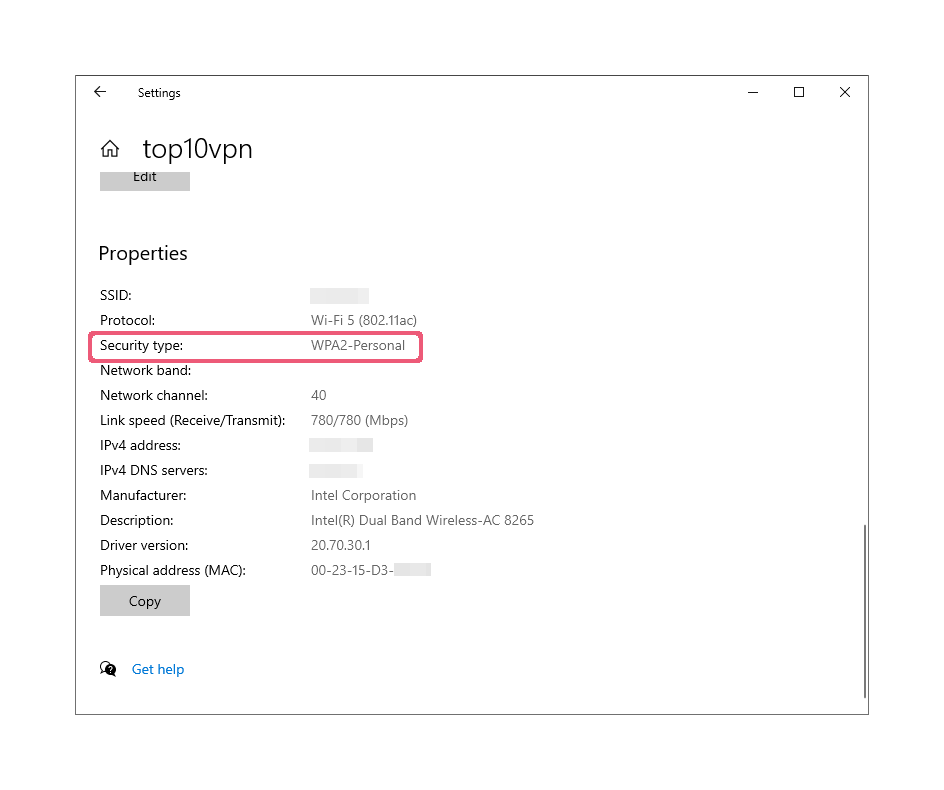
WEP networks use shared passwords, enabling easy decryption. WPA/WPA2-PSK networks use individual keys derived from shared passwords, improving but not eliminating risks.
WPA2-PSK networks offer improved security with individual encryption keys.
WPA/WPA2-Enterprise networks generate unique per-client, per-session keys, preventing traffic decoding between users. Here, attackers would need to create fake hotspots to access data.
Although many public hotspots still use WPA2, the latest WPA3 security protocol significantly improves security on public networks through a feature called Opportunistic Wireless Encryption (OWE).
Unlike WPA2, WPA3 encrypts individual connections even on networks that don’t require a password. This prevents other users using the same WiFi from “sniffing” your data packets. Crucially, both the WiFi router and your device must support WPA3.
HTTPS vs HTTP Websites
Most websites use HTTPS, an encrypted connection that secures information between your device and web servers using TLS (Transport Layer Security).
HTTPS is an encrypted version of HTTP, which is the basic internet standard for accessing web pages, that:
Prevents most third parties from viewing your website activity.
Blocks insertion of malicious code into your web traffic.
HTTPS-enabled websites display a padlock in your browser’s address bar. While HTTPS improves public WiFi safety, it doesn’t guarantee complete protection. Vulnerabilities remain to certain Man-in-the-Middle attacks, phishing, certificate authority issues, and SSL/TLS vulnerabilities.
Importantly, HTTPS doesn’t protect DNS queries, which can be intercepted and manipulated. For comprehensive protection, we recommend using HTTPS in combination with a VPN.
EXPERT ADVICE: HTTPS ensures encrypted connections but doesn’t guarantee you’re on the intended website. Even with a padlock in the address bar, always verify you haven’t been redirected to a similar-looking domain.
HTTPS prevents WiFi providers from seeing individual pages visited, but domain names remain visible.
Most popular websites use HTTPS, but be cautious of those that don’t. Unencrypted (HTTP) traffic can be:
Monitored by attackers
Injected with malicious code
Logged by WiFi providers
Based on Google’s reports, there is still a small percentage of websites that don’t default to HTTPS. For these, you should use a VPN (either an app or a browser extension) to force HTTPS.
Man-in-the-Middle (MitM) Attacks
A Man-in-the-Middle (MitM) attack occurs when a malicious third party interrupts or alters the communication between two systems.
On public WiFi, MitM attacks target the connection between your computer and the web server.
Public WiFi increases MitM attack risk.
On unsecured networks, attackers can:
Alter network traffic
Redirect traffic
Inject malicious content
Hackers can display fake websites, replace links, add images, and trick users into revealing personal information.
MitM attacks are popular because they’re cheap, easy, and effective. All a hacker needs is a device like the WiFi Pineapple.
The WiFi Pineapple allows virtually anyone to exploit public networks to collect personal data.
These devices allow anyone to create fake WiFi access points for MitM attacks. They’re commercially available in computer hardware stores.
The WiFi Pineapple is a useful tool for researchers to test the security of WiFi networks but is very dangerous in the wrong hands. The device can:
Interface with hundreds of devices simultaneously
Gather sensitive data from public WiFi users
Run SSLstrip software to convert HTTPS requests to insecure HTTP
WiFi Pineapples can scan for SSID signals, impersonating known WiFi networks and tricking devices into connecting automatically.
WiFi Pineapples can scan for the SSID signals used by device to find and connect to known WiFi networks, then impersonate them in order to trick devices into connecting automatically.
For instance, at the 2016 US Republican Convention, over 1,200 people connected to fake networks with names like ‘I Vote Republican! Free Internet’ that were set up by Avast in a stunt to demonstrate the dangers of free WiFi. 68% of users exposed their identities as a result.
Be cautious of auto-connecting to networks, especially if the name or location seems suspicious.
DNS Spoofing
DNS Spoofing or ‘DNS cache poisoning’ is a MitM attack that diverts traffic from legitimate servers to fake ones, often exploiting unprotected public WiFi networks.
When you enter a URL, your device contacts a DNS nameserver to find the matching IP address.
DNS spoofing occurs when an attacker changes the entries in a nameserver’s resolver cache, redirecting users to a different IP address.
DNS Spoofing works by redirecting your traffic to fake servers.
This allows attackers to send users to phishing sites mimicking legitimate websites, designed to capture sensitive data like usernames and passwords.
Public WiFi hotspots can be vulnerable as they are often managed by small businesses lacking the technical knowledge to maintain adequate security measures, such as changing default passwords and updating firmware.
Hackers can exploit these weaknesses to install malware on routers, redirecting DNS queries to malicious servers, enabling them to divert traffic.
Session Hijacking
Session hijacking is another MitM attack that grants attackers full control of your online accounts. The risk has decreased with the widespread adoption of HTTPS.
Hackers can steal your identity through session hijacking.
‘Sessions’ are temporary states between communicating devices, such as your device and a web server, established using authentication protocols.
When logging onto a website, you’re assigned a session cookie containing details about your interaction with the web server. As you browse, the server requests this cookie for authentication.
Session hijacking copies these cookies to impersonate your device and steal your identity, targeting valuable cookies from secure websites like banking or shopping platforms.
On unsecured networks, attackers use ‘session sniffers’ to intercept session cookies. This software is easily accessible, despite being illegal for eavesdropping and data snooping.
FAQs
How Do I Make Sure Public WiFi Is Secure?
Always make sure you’re connecting to a legitimate WiFi network that’s password-protected. If you don’t know who’s operating the network, don’t connect to it.
The easiest way to make sure you are secure on public WiFi is to use a VPN app, which will encrypt all internet traffic leaving your device.
Even if you’re connected to a compromised WiFi hotspot, a VPN will stop the hotspot operator snooping on your connection or manipulating your web traffic.
Is Your Browsing History Visible on Public WiFi?
If you’re not using a VPN, the WiFi owner or network administrator will see the domains you accessed, even if they’re encrypted using HTTPS.
And if the websites you visit aren’t using HTTPS encryption, the WiFi operator will see every individual URL, too. Most routers keep a log of the websites visited through them.