Top10VPN is editorially independent. We may earn commissions if you buy a VPN via our links.
How to Set Up a Home VPN Server
JP Jones
JP Jones is our CTO. He has over 25 years of software engineering and networking experience, and oversees all technical aspects of our VPN testing process. Read full bio
There are alternatives to using a commercial VPN Service. With some work, and using devices you may already own (or could buy), it’s possible to host your own VPN server from home, with just the monthly cost of the electricity used to power the device.
By creating your own home VPN server, you’ll be able to access files held on devices like your home computer or NAS, access your own hosted OpenClaw AI agent, stream content from back home, and benefit from private DNS to block ads using Pi-Hole.
In this guide, we’ll explore different technologies you can use to set up your own, personal VPN server, or otherwise access your home network securely.
Want to run a self-hosted VPN server outside of your home? We’ll look at that, too.
Most of these methods require some technical know-how. We’ll tell you what’s involved so you can pick the right one. Whatever you choose, you’ll have to stay on top of software updates on all your devices, to avoid putting your data and wider internet security at risk.
Keep in mind that if you want to make your own VPN to stream geo-restricted content from other countries, you’ll need to use a reputable commercial VPN service instead.
We’re fully independent and have been reviewing VPNs since 2016. Our ratings are based on our own testing results and are unaffected by financial incentives. Learn who we are and how we test VPNs.
Home VPN Server Setup Methods Compared
We’ve broken down this guide into several areas, each one listed out below with an associated difficulty rating and cost.
Table comparing five methods to create your own VPN.
For most of these methods, you need to choose between two VPN protocols: WireGuard or OpenVPN. We recommend WireGuard – it’s faster, more secure, and simpler to configure, and we will focus on using that in this Guide.
Be aware that some public WiFi networks block VPN ports or protocols, which could prevent you from connecting when you need to.
Is a Home VPN Server Right for Me?
Setting up your own VPN server makes the most sense in a specific situation: you want to access your home network remotely, and you’re comfortable with the technical setup and ongoing maintenance it requires.
You control the devices, you know who owns the server, and there’s no monthly subscription fee beyond what you already pay your internet service provider.
No ISP privacy. Your ISP can still see all your online activity, as the VPN only encrypts traffic between your device and your home.
Limited by upload speed. VPN performance is bottlenecked by your home broadband’s upload speed, which is typically much slower than download.
High maintenance. You must regularly apply security updates, or you’ll expose yourself to serious risks.
Requires technical knowledge. Setup and management involve networking concepts, router configuration, and often command-line tools.
Single home IP only. You cannot switch to IP addresses in other countries like commercial VPNs do.
No identity protection. All traffic exits through your home IP, which is linked to your account by your ISP.
Doubles data usage. All traffic counts twice against your data cap (incoming + outgoing).
Must be available 24/7. Most methods require a device at home that’s always on and connected. If it’s off, or your home internet drops, you lose access.
Security is entirely your responsibility. There’s no provider patching things for you. We recommend regularly testing your setup with our IP Location Checker and VPN Leak Test tools.
If you’re looking to enhance your online privacy, access geo-restricted content from other countries, or simply want something that works instantly without technical upkeep, a trusted commercial VPN will serve you better.
Before You Start
There are a few technical questions and requirements set out below which will dictate what configuration methods are available to you.
ISP Requirements
Does your ISP use CGNAT? You can check your router’s Public IP address against the IP address shown in our IP Checker tool.
If they match, your connection is probably CGNAT-free and is able to host a VPN server.
If they differ, then your ISP definitely uses CGNAT, which means your home connection cannot host a VPN Server.
CGNAT prevents port forwarding, making it impossible to self-host a VPN server at home, since inbound connections can’t reach it.
Therefore, if you’re with an ISP that uses CGNAT, your only real option is to configure a Mesh Network option described in Method 1.
Device Requirements
The device you use as the server should meet the following requirements in order to give you a VPN connection with reasonable speed.
Modern. Less than five years old and able to receive regular security updates.
Strong CPU. Powerful enough to handle VPN encryption without slowing down speeds.
Gigabit Ethernet. Must connect via Ethernet cable to the router, as Wi-Fi is unreliable and may disconnect.
24/7 Operation. Can run continuously and you’re okay with the electricity costs.
If your device doesn’t meet these criteria, then we strongly recommend buying a new one.
Device Static IP
The device you will use as your VPN server should be configured with an internal static IP address on your network.
First, find out whether your ISP assigns you a static or dynamic public IP address.
A static IP never changes.
A dynamic IP can change periodically.
If you have a dynamic IP, we strongly recommend setting up DDNS (Dynamic DNS), such as No-IP.
DDNS gives your changing IP address a fixed, memorable domain name (e.g., yourname.ddns.net). This way, you don’t have to update your VPN configuration every time your IP changes.
To set up DDNS on your router, follow the guide published by No-IP, which is directly supported by many routers. Alternatively, find instructions on your router manufacturer’s website.
How to Set Up a Home VPN Connection
Let’s look at the various configuration methods in detail.
Method 1: Use a Mesh Networking Tool
Difficulty: Easy. Cost: Free (if you already have suitable hardware)
This is the simplest and fastest way to securely access your home network remotely.
Instead of manually setting up a VPN server, mesh networking tools like Tailscale, NetBird, or Meshnet create a private, encrypted network between all your devices automatically.
None of these tools require complex server configuration.
Note: If your ISP uses CGNAT, one of these mesh solutions is your only real option for being able to VPN into your home network.
Requirements
One device on your home network that stays powered on 24/7 (PC, Mac, Raspberry Pi, Apple TV, Fire TV Stick, etc.)
An account with the mesh service
The devices you want to connect from (laptop, phone, etc.)
How It Works
The software installs on each device and creates a secure "mesh" network. Every device can reach every other device in your account directly, with all networking handled in the background.
Popular Options
Tailscale. Free for personal use (up to 100 devices and three users). Great features including Exit Node (route all traffic through home internet) and Subnet Routing (access all devices on your home LAN).
NetBird. Open-source alternative with similar features to Tailscale. It does have a self-host option, but setup is more involved.
NordVPN Meshnet. Free to use, but requires an active NordVPN subscription for full functionality. Limited to 60 devices (10 per account, max six accounts).
Important Privacy Notes
These services require you to create an account with your email address. They will know:
The public IP addresses of your devices.
DNS lookups made within the mesh network if you use their DNS Servers.
They won’t see the actual content of traffic between your devices. However, if you want zero third-party involvement and full control, consider Methods 2–4 instead.
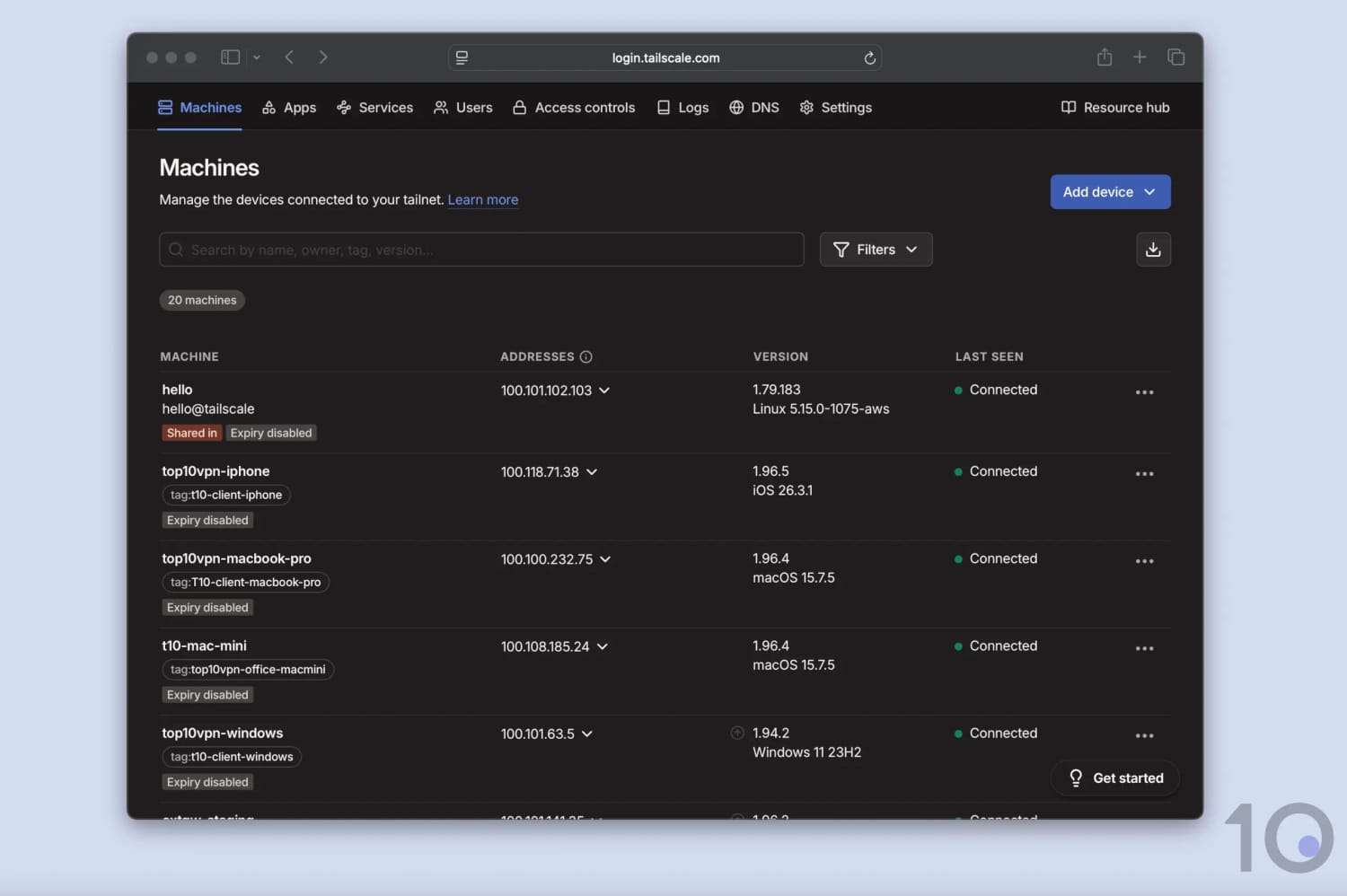
Tailscale Admin showing our configured group of iPhone, Mac and Windows devices in a Mesh Network.
How to Set up Remote Access with Tailscale
Prepare your Home Gateway Device
Choose a device that will stay online 24/7 (Raspberry Pi, PC, Mac, etc.).
Raspberry Pi: Consider reinstalling the OS for a clean, dedicated setup.
Windows PC or Mac: Fully update the OS and change power settings so the device never sleeps or suspends.
Create a Tailscale Account
Go to Tailscale.com and create a free account using your email, Google, Microsoft, or Apple ID.
Configure your Home Gateway Device
Decide what you need:
For access to your entire home network:
Set up the device as a Subnet Router. Follow Tailscale’s Subnet Router guide.
To route all your traffic through your home internet:
Set up the device as an Exit Node. Follow Tailscale’s Exit Node guide.
Tip: You can enable both Subnet Routing and Exit Node on the same device.
Install Tailscale on your Other Devices
Install the Tailscale app on the devices you want to connect from (e.g. phone, laptop, tablet).
After logging in with the same account, your devices should see each other automatically.
To use your home connection (Exit Node):
On each client device, open the Tailscale app > go to Exit Node > select your home device. Full instructions are in this Tailscale guide.
The Tailscale software now manages everything in the background to allow your devices to communicate with each other.
How to Set Up Remote Access with Meshnet (NordVPN)
Prepare your Home Gateway Device
Choose a device that will stay online 24/7 (Raspberry Pi, PC, Mac, etc.).
Raspberry Pi: Consider reinstalling the OS for a clean, dedicated setup.
Windows PC or Mac: Fully update the OS, and change power settings so the device never suspends or sleeps.
Install NordVPN and Enable Meshnet
Download and install the NordVPN app on your home device.
Log in with your NordVPN account (Meshnet requires an active subscription).
Open the app. Go to Meshnet (usually in the left menu) > Enable Meshnet.
Configure Routing Features on Your Home Device
For access to your entire home network (Subnet / LAN access):
Enable Remote Access or Traffic Routing for the home device in the Meshnet tab.
To route all your traffic through your home connection (Exit Node):
In the Meshnet tab, find your home device and turn on “Route all traffic” (or Traffic Routing).
Tip: You can enable both features on the same device.
Install on Your Other Devices
Install the NordVPN app on your phone, laptop, or other devices.
Log in with the same account and enable Meshnet on each one.
Your devices will automatically appear in the Meshnet list.
To use your home internet (Exit Node): Go to Meshnet > select your home device > click "Route all traffic".
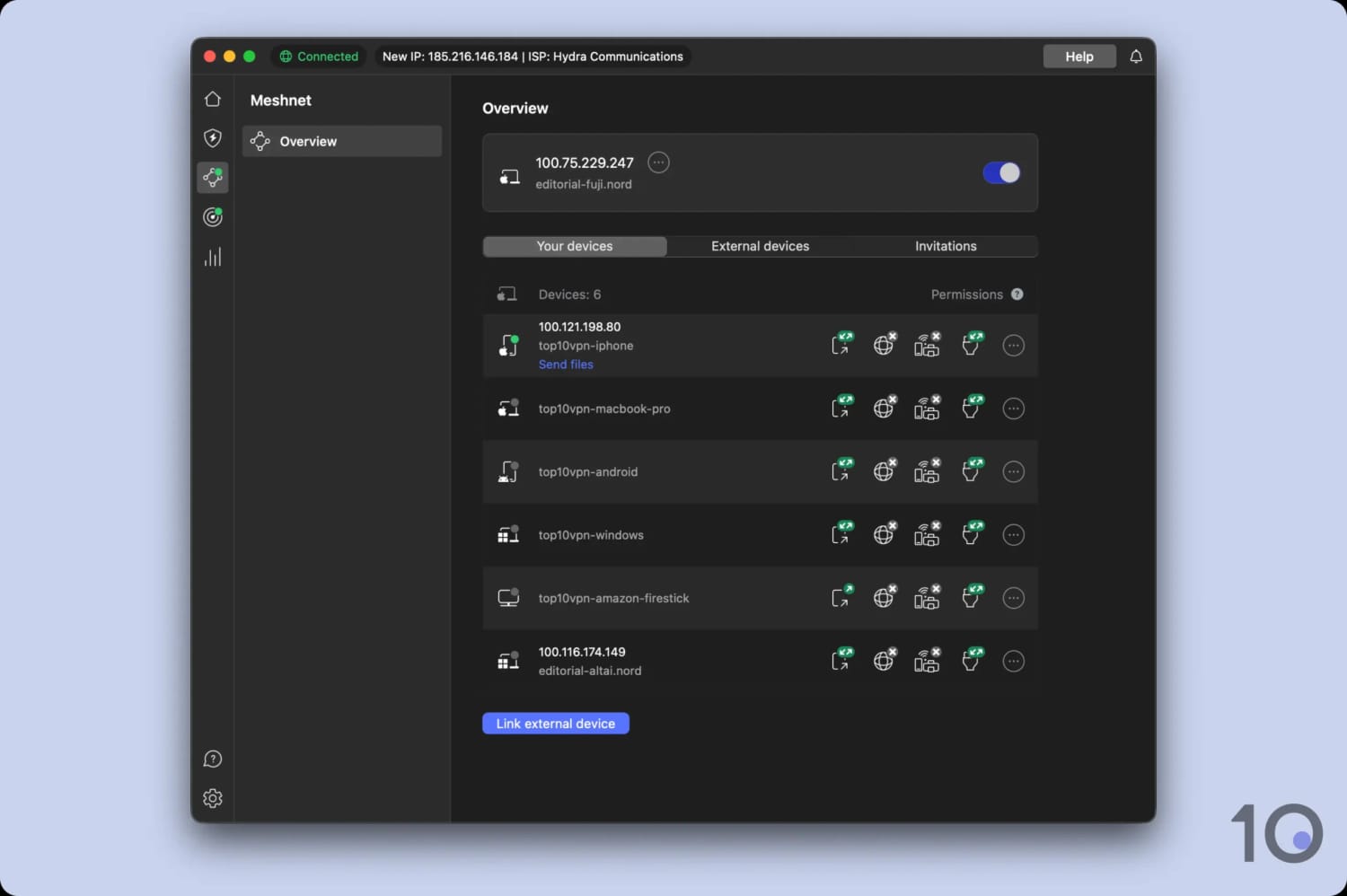
Meshnet has connected all your devices securely in the background.
We connected into our "home" device from abroad using Meshnet.
How to Set Up Remote Access with NetBird
Prepare your Home Gateway Device
Choose a device that will stay online 24/7 (Raspberry Pi, PC, Mac, etc.).
Raspberry Pi: Consider reinstalling the OS for a clean, dedicated setup.
Windows PC or Mac: Fully update the OS, and change power settings so that the device never sleeps or suspends.
In the NetBird dashboard, go through the onboarding process, or click Peers > Add Peer.
Generate a Setup Key.
On your home device, run the installation commands provided (this will be a one-line curl script + netbird up command).
Once connected, go to Network Routes:
Add your home subnet (e.g. 192.168.1.0/24) and assign your home device as the routing peer.
For Exit Node (route all internet traffic): Select your home device > Set Up Exit Node (advertise 0.0.0.0/0).
Connect Your Client Devices
Install the NetBird client on your phone, laptop, etc.
Log in / authenticate with your account.
The devices will connect automatically.
To use the Exit Node: In the NetBird app or dashboard, select your home device as the exit node for that client.
NetBird now has created a secure mesh network between all your devices.
Method 2: Buy a VPN Router
Difficulty: Easy Cost: $150+ for new hardware
This is the easiest and most reliable way to run your own fully self-hosted VPN server at home with no third-party accounts.
Instead of installing software on a separate device, you buy a router that has a built-in VPN server. Popular options include certain ASUS, GL.iNet, and Synology routers.
Important Considerations
These routers are more expensive than basic models (typically $150 – $250).
They often cost more than 1–2 years of a good commercial VPN, but give you full access to your home network.
We strongly recommend routers that support WireGuard for the best speed and security.
You cannot easily switch protocols later, so choose carefully.
How to Set Up your Router as a VPN Server
Specific instructions vary according to the router and software used, but the general process to configure a VPN Server on your home router is as follows:
Log into your router
Open a web browser and go to your router’s LAN IP address (commonly 192.168.0.1 or 192.168.1.1).
If neither of those are your router’s IP address, follow these instructions to find your network’s gateway IP address. Type this IP address into your web browser.
A login page should be shown. Enter the router’s username and password. If you haven’t already changed this, both parts will likely be ‘admin’, but you should be able to find these login details on a sticker on the back or bottom of your router.
Enable the VPN Server
Go into "Advanced Settings" > "VPN".
Enable the "VPN Service".
Select WireGuard (preferred) or OpenVPN.
Make sure you allow clients using the VPN connection to access all sites on the internet and home network.
Apply the settings.
Now, set up your VPN client – that’s the device you will be using to connect to the VPN.
How to Install VPN access software on your client device
Depending on what was enabled on the router, install the WireGuard or OpenVPN Connect software on your phone, laptop, or tablet.
Download the configuration files from your router’s VPN control panel onto the client device.
Import the config file into the WireGuard or OpenVPN app.
Connect to the VPN (test away from your home network, or use your mobile data).
Verify it works and check for DNS leaks.
Method 3: Use Your Computer as a Server
Difficulty: Medium Cost: Free (assuming you have suitable hardware)
This method gives you full control by running your own WireGuard VPN server directly on a device at home. It requires port forwarding on your router and manual configuration.
Important Requirements & Limitations
This method won’t work if your ISP uses CGNAT.
Importantly, the device used as the VPN server must be switched on 24/7. If it’s turned off or crashes, you will lose remote access.
This requires a Windows PC, macOS, or Linux-based device such as a Raspberry Pi.
How to Turn your Windows PC or Mac into a WireGuard VPN Server
Find your computer’s private IP address (and set it as static if possible, as per the setup prerequisite above).
Set up port forwarding on your router:
Forward external UDP port 51820 to your computer’s private IP address from Step 1.
Allow the port on your firewall – Add a rule for inbound UDP 51820.
See our guide on changing NAT Type for help.
Download and install the WireGuard app for your system.
If you’re setting up WireGuard VPN Server on Windows, then this alternative server installation method might be more straightforward.
Open the WireGuard app and Create a new tunnel:
Windows: Click "Add Tunnel" > "Create new tunnel".
macOS: Click the "+" button and select "Create new tunnel".
Follow the in-app instructions to generate server keys and configuration.
How to Create a VPN Server on a Linux device like a Raspberry Pi
A Raspberry Pi is a popular low-cost option.
Note: Raspberry Pi 4 or newer is recommended — older models are limited to 100 Mbps.
Prepare a Raspberry Pi with a fresh OS install and set a static IP.
Set up port forwarding on your router:
Forward external UDP port 51820 to your computer’s private IP address from Step 1.
We suggest using PiVPN for the easiest setup.
Run the installer with: curl -L https://install.pivpn.io | bash
Choose WireGuard during setup.
PiVPN is a well known open source project which simplifies installation of both OpenVPN and WireGuard servers onto Ubuntu- and Debian-based systems. It’s used in this general guide to setting up a Pi as a WireGuard VPN Server.
Generate client configuration files on the server.
Install the WireGuard app on your phone, laptop, or tablet.
Import the config, and connect to the VPN (off your home network, or use your mobile data).
Verify it works and check for DNS leaks.
Method 4: Flash Your Current Router
Difficulty: Hard Cost: Free (assuming you have suitable hardware)
Projects such as DD-WRT, OpenWRT, and FreshTomato, provide alternative firmware for your router, expanding its capabilities.
If your router model is supported by one of these projects, you can download their firmware file and write it to your router’s flash memory. This process is called "flashing".
These projects can all add VPN server support to your router, enabling you to use old, existing hardware to access your home network.
That said, flashing your existing router is risky as there’s greater room for error and security flaws compared to buying a router with built-in VPN server support.
Moreover, these projects’ firmware files are unsupported by your router manufacturer.
Therefore, you must do your research before you flash your router, since doing so on a device which doesn’t support the firmware could break (or ‘brick’) your router.
You can check if your router is compatible by using these databases: DD-WRT, OpenWRT, and FreshTomato.
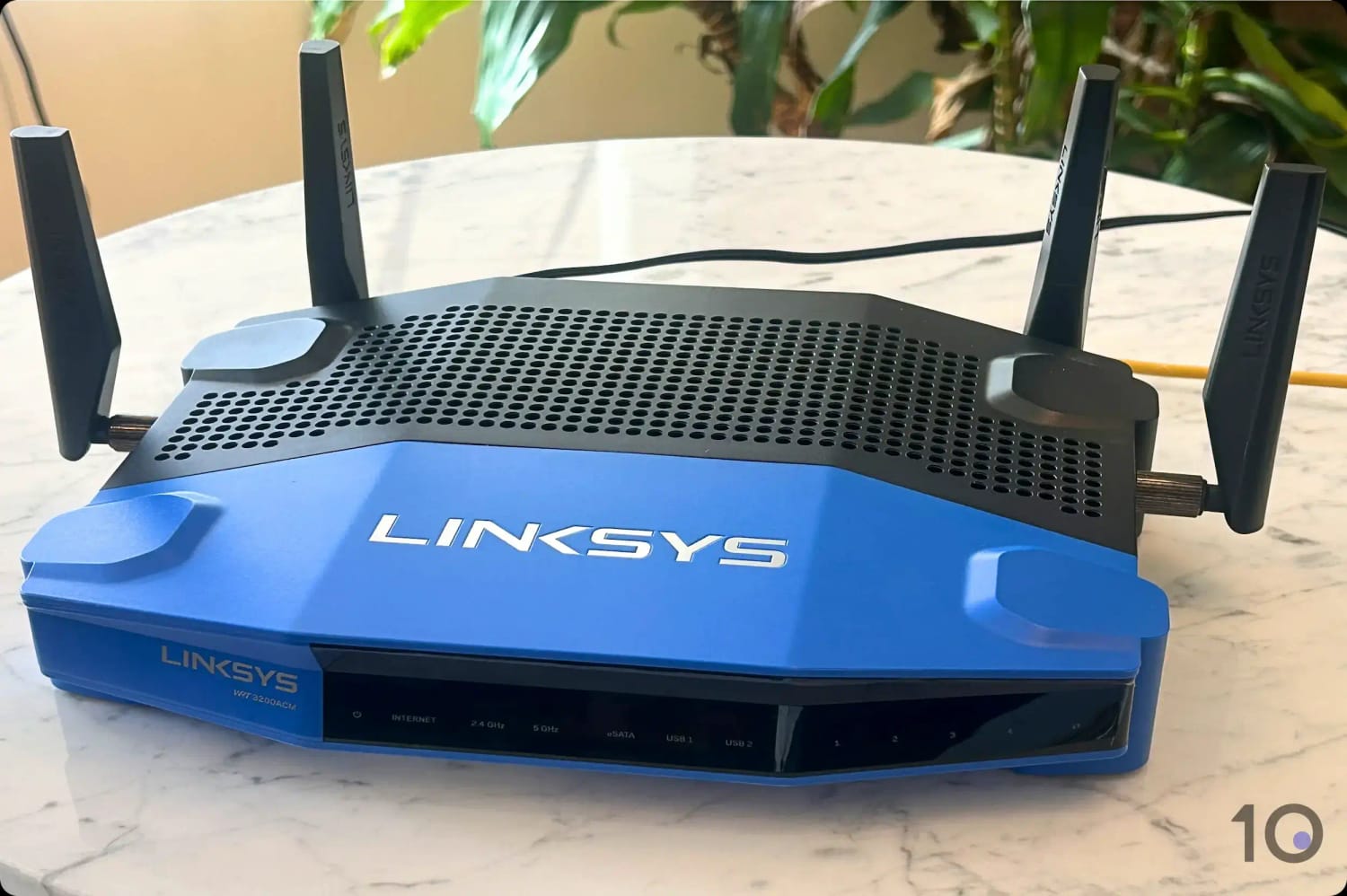
Using flashed firmware, our Linksys WRT 3200ACM Router can host a WireGuard VPN Server.
How to Flash Your Home Router and create a VPN Server
Each project offers a full setup guide, so we’re linking to those below as they hold the most up-to-date documentation of the process, tailored to each project.
Their VPN servers are also configured separately, so for convenience we’ve linked to those instructions too.
Quick summary of steps you can expect to take:
Download and install firmware.
Configure router with ISP details to get back online.
This method lets you run your own WireGuard VPN server in a data center of your choice, giving you a public IP address from almost any country, with no third-party VPN provider logging your activity.
You can set up multiple Virtual Private Servers in different countries, but you’ll be paying for each server individually.
If you do this, then you’d be able to change your IP address to any location of your choice. But ask yourself: is it worth the hassle? It’s definitely cheaper, and simpler, to use a top-tier VPN service like ExpressVPN or NordVPN.
Because these are recognized hosting companies in big data centers, virtual private servers rarely bypass streaming geo-restrictions such as those imposed by Netflix and Disney+.
This is because data centre IP ranges are categorized as being used for Hosting, and hosting servers aren’t really known for their need to stream the latest TV shows.
Key Differences from a Home VPN
You don’t need hardware at home switched on 24/7
The server runs on a rented Linux VPS (command-line access only), costing approx. $5/month.
You can choose the country/location of your IP address.
You can’t access devices on your home network (this is not a remote access solution).
Important Considerations
Costs roughly the same as a good commercial VPN, but with access only to a single IP.
More exposed to the internet than a home server (no router NAT protection), so strong security is essential.
Most VPS IP addresses are blocked by Netflix, Disney+, and other streaming services.
You must keep the server updated at all times to avoid being hacked.
Your VPS network activity is subject to the hosting providers’ networking, privacy, and acceptable use policy.
Setup Overview
Rent a VPS
Recommended providers: DigitalOcean, Hetzner, Scaleway, OVH, or Linode.
Choose a plan with at least 2 GB RAM and 2 CPU cores.
Secure the Server
Log in via SSH and immediately change the root password.
Set up SSH key authentication (disable password login).
Configure Clients
Generate client config files on the VPS, download them securely, and import into the WireGuard app on your devices.
FAQs
Can I Use My Home VPN Server to Access Geo-blocked Content?
Connecting to your home VPN server while abroad means websites you visit will see your home IP address, so you can access services tied to your home country.
However, unlike a third-party VPN service, you can’t switch between servers in different countries.
Will Setting up a Home VPN Server Slow Down My Internet?
Yes, to some extent. Your VPN connection is limited by your home broadband’s upload speed, which is typically much slower than its download speed.
The faster your upload bandwidth, the less noticeable the impact.
WireGuard is significantly more efficient than older protocols like OpenVPN, so protocol choice matters.
How Many Devices Can Connect to My Home VPN Server at Once?
There is no hard limit, so it depends on your hardware and internet connection.
In practice, a standard home router or computer can handle several simultaneous connections comfortably.
That said, performance will degrade as more devices connect especially if you’re streaming or transferring large files.
Do I Need a Static IP Address to Set up a Home VPN Server?
No. If your ISP assigns you a dynamic IP address (which changes periodically) you can set up Dynamic DNS (DDNS) to map a fixed domain name to your ever-changing IP.
Most router manufacturers offer DDNS support built into the router’s settings panel.
Is a Home VPN Server Secure?
Yes, as long as it’s set up and maintained correctly, otherwise it can expose your home network to outside threats.
Using a modern protocol like WireGuard, keeping your router firmware and software up to date (which is your responsibility), and regularly testing for IP leaks will keep your setup as secure as possible.
What Happens If My Home Internet Goes Down?
If your internet line at home suddenly cuts out, your VPN connection will drop immediately, and you won’t be able to reconnect until your home internet comes back online.