




Top10VPN is editorially independent. We may earn commissions if you buy a VPN via our links.
The Best VPNs That Still Work with Netflix
Simon Migliano
Simon Migliano is a recognized world expert in VPNs. He's tested hundreds of VPN services and his research has featured on the BBC, The New York Times and more. Read full bio
The best VPN to unblock geo-restricted Netflix content is ExpressVPN. The VPN easily accessed 18 popular regions, including the US, UK, Japan, and India, on the widest selection of devices. NordVPN unblocks almost as many regions as ExpressVPN, with a free password-sharing workaround, while PrivadoVPN is a good free option to stream US and UK Netflix.
The content available on Netflix varies by country, due to licensing agreements made with rights holders around the world.
To enforce these contracts, Netflix looks up your IP address location when you log in and only shows you content assigned to that country.
The best VPNs successfully modify your IP location and change your Netflix region to give you access to hundreds of “hidden” content titles around the world.
Very few VPNs work well with Netflix, though. Many only unblock a handful of regions at best.
Summary: The Best VPNs for Netflix
Of the 61 VPNs we tested, the five below unblocked the most regions with impressive consistency:
We’re fully independent and have been reviewing VPNs since 2016. Our ratings are based on our own testing results and are unaffected by financial incentives. Learn who we are and how we test VPNs.
Consistently unblocks 18 Netflix libraries, including the US & UK
Fast connection speeds for HD & 4K streaming
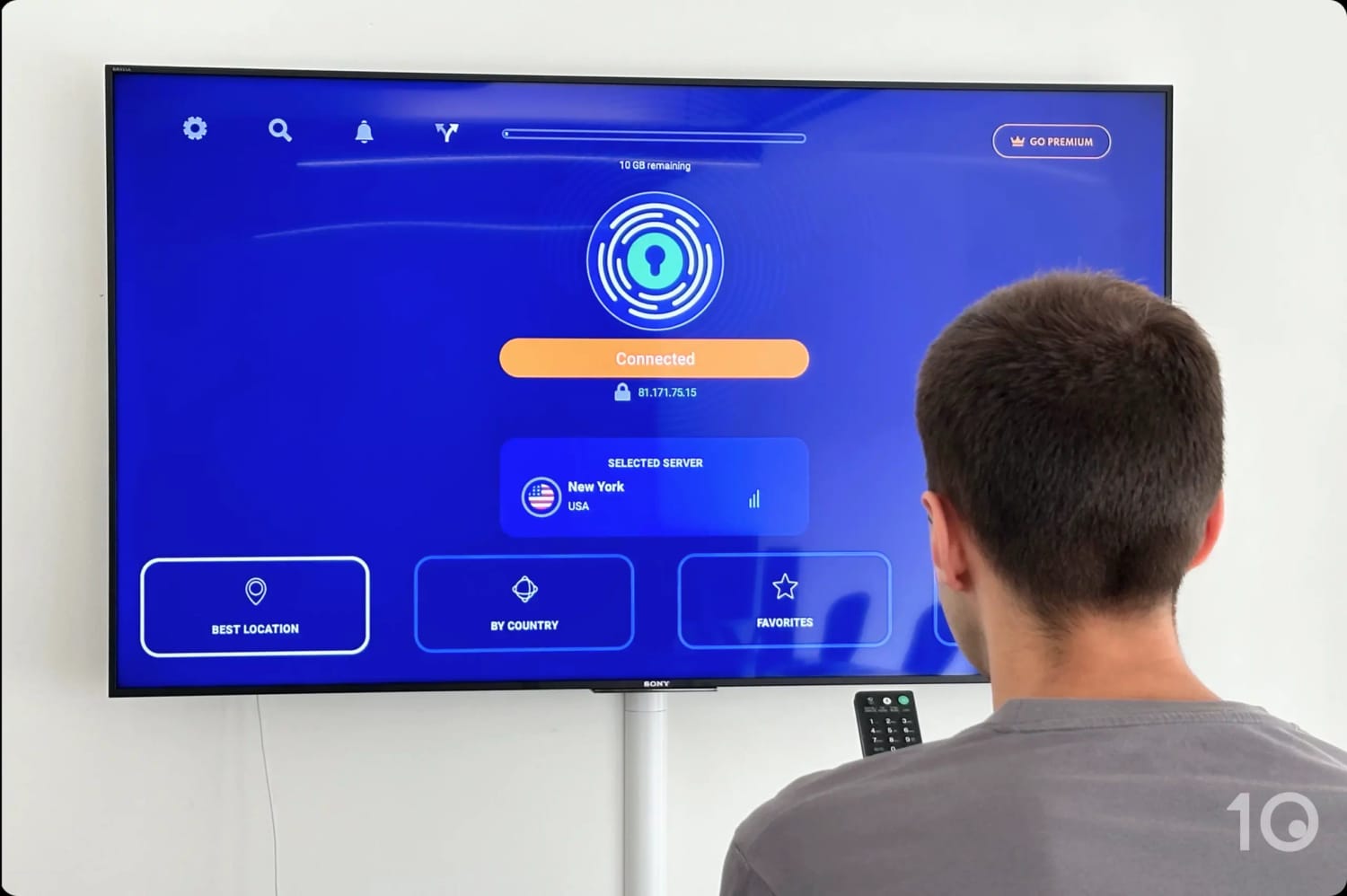
Easy-to-use apps for Firestick, Apple TV & Android TV
Smart DNS feature unblocks US Netflix on game consoles & Smart TVs
Router app extends device compatibility to Roku
Exceptional 24/7 customer support
Smart DNS only works with UK & US Netflix
Doesn’t work with Netflix in Mexico & Switzerland
No Meshnet-type feature
Pricing Plans
$12.99/mo
$3.49/mo over 15 months
$2.44/mo over 28 months
Money-Back Guarantee
30 Days
Countries with Servers
109
Servers
13,360
No. of Netflix Libraries
18
Simultaneous Connections
10
Support
24/7 Live Chat
Compatible with
Windows
Mac
iOS
Android
Linux
Amazon Fire TV
Android TV
Apple TV
Router
Chrome
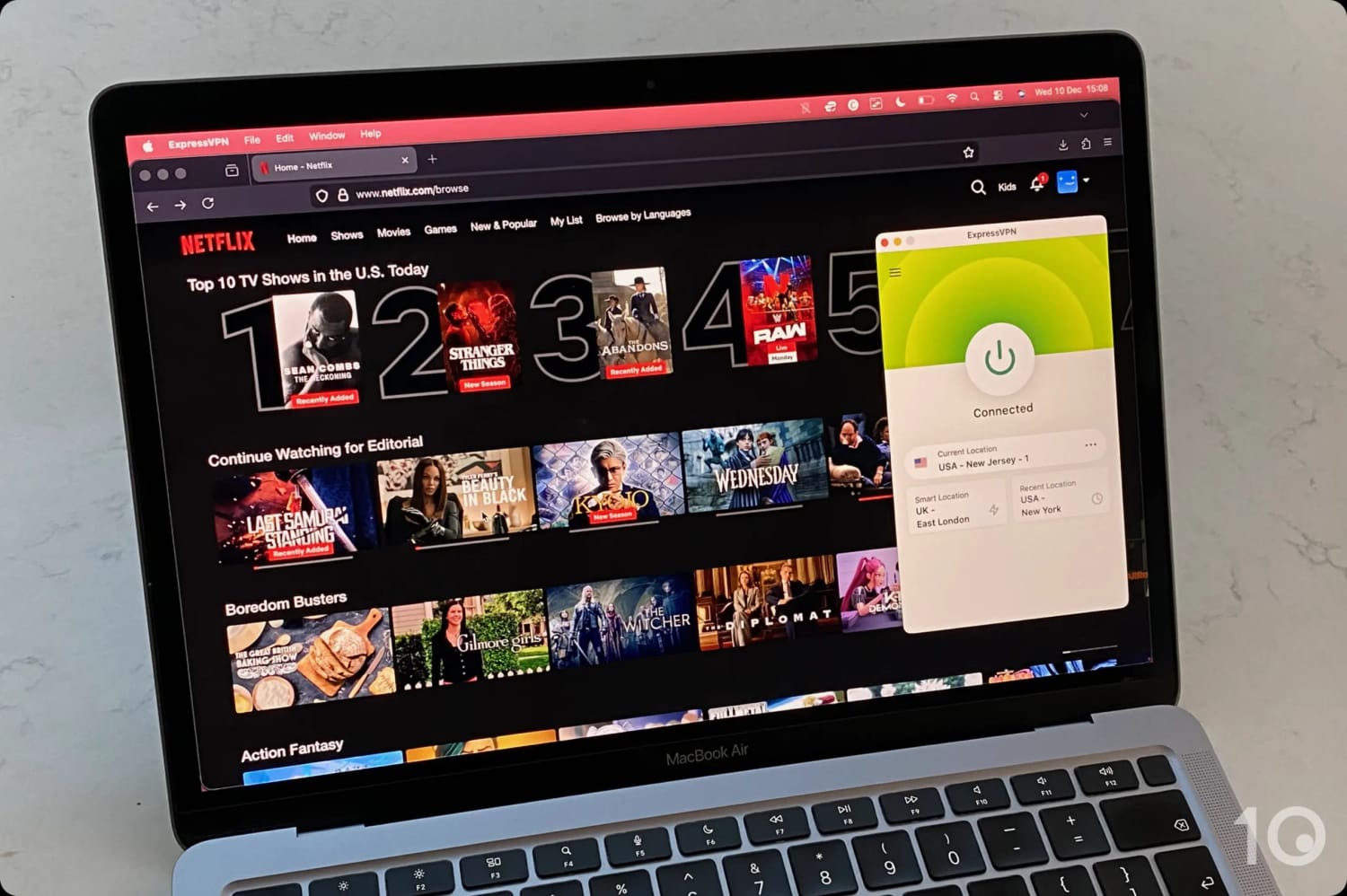
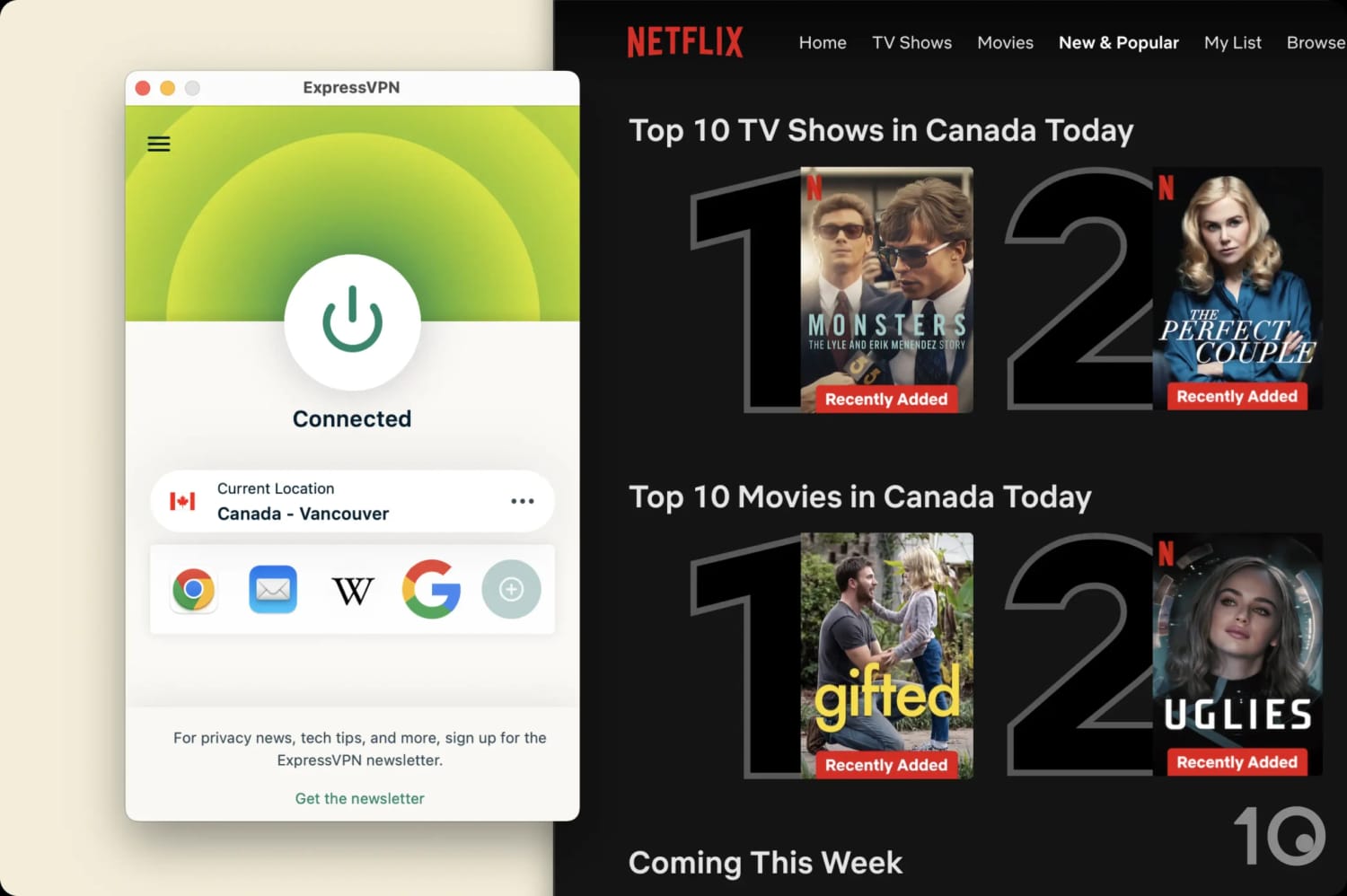
ExpressVPN is without a doubt the best VPN you can get for streaming geo-restricted Netflix titles around the world.
Its compact and user-friendly apps unblock many popular Netflix regions, consistently and on the widest range of devices.
And thanks to its extensive VPN server park, which continues to deliver exceptional streaming speeds, we’ve never experienced any blurriness or buffering in recent tests.
ExpressVPN is the most consistent VPN at unblocking US Netflix.
Consistent Access to the Most Popular Catalogs
ExpressVPN’s standout feature for Netflix is its reliability. Over the last five years, ExpressVPN has been the sole VPN to consistently unblock more than 50% of the eight most popular Netflix content libraries.
ExpressVPN unblocks all major Netflix libraries without issue.
The chart below illustrates ExpressVPN’s stable performance compared to the inconsistent access of other VPNs:
Even during the strict 2021 Netflix VPN ban, it could unblock four of the eight most popular Netflix regions. Rival VPNs, like NordVPN and Surfshark, didn’t work with any.
The one frustration we’ve encountered is that ExpressVPN’s default US server location doesn’t unblock US Netflix. You’ll have to manually search and connect to a different US location instead.
This is less intuitive than other top-tier VPNs, which auto-connect to a US Netflix-optimized server.
Unparalleled Device Compatibility
ExpressVPN is the only VPN that offers complete device coverage, thanks to apps for streaming devices, a dedicated router app and a Smart DNS proxy (MediaStreamer).
This breadth of compatibility allows for a much smoother streaming experience especially on trickier platforms like PlayStation, Xbox, and Roku.
ExpressVPN’s dedicated apps are easier to set up and use than any other VPN we’ve reviewed. The simplified home screen interface removes any potential confusion for beginners.
That being said, you can still activate advanced options, like ad blocking, from the ‘Settings’ menu once you’re more familiar.
MediaStreamer lets you reroute traffic through a proxy without the need for additional software, although it doesn’t support region switching beyond the UK and US.
ExpressVPN is also the only service to have developed a VPN app for routers, which allows you to connect each household device to a specific VPN location.
Not only does this get round ExpressVPN’s device policy, but it also makes it infinitely easier to use the VPN with Roku, since Netflix blocks AirPlay.
We used ExpressVPN’s router app with our Roku Stick.
Netflix Regions Unblocked
ExpressVPN works with the following regions: Australia, Brazil, Canada, France, Germany, Hong Kong, India, Indonesia, Italy, Japan, Netherlands, Poland, Singapore, South Korea, Spain, Turkey, UK, and the US.
List of servers we’ve verified to work with the five most popular Netflix regions:
Very fast streaming speeds using NordLynx protocol
Easy to use apps for popular devices
Automatically connects you to a Netflix-optimized server
Meshnet allows to beat password-sharing crackdown
Can’t access Netflix in India, South Korea & the Netherlands
Smart DNS doesn’t work with Netflix
No dedicated router app
Only 3-day free trial on Android
Renews at a much higher price
Pricing Plans
$12.99/mo
$4.99/mo over 12 months
$3.39/mo over 24 months
Money-Back Guarantee
30 Days
Countries with Servers
127
Servers
9,000
No. of Netflix Libraries
17
Simultaneous Connections
10
Support
24/7 Live Chat
Compatible with
Windows
Mac
iOS
Android
Linux
Amazon Fire TV
Android TV
Apple TV
Router
Chrome
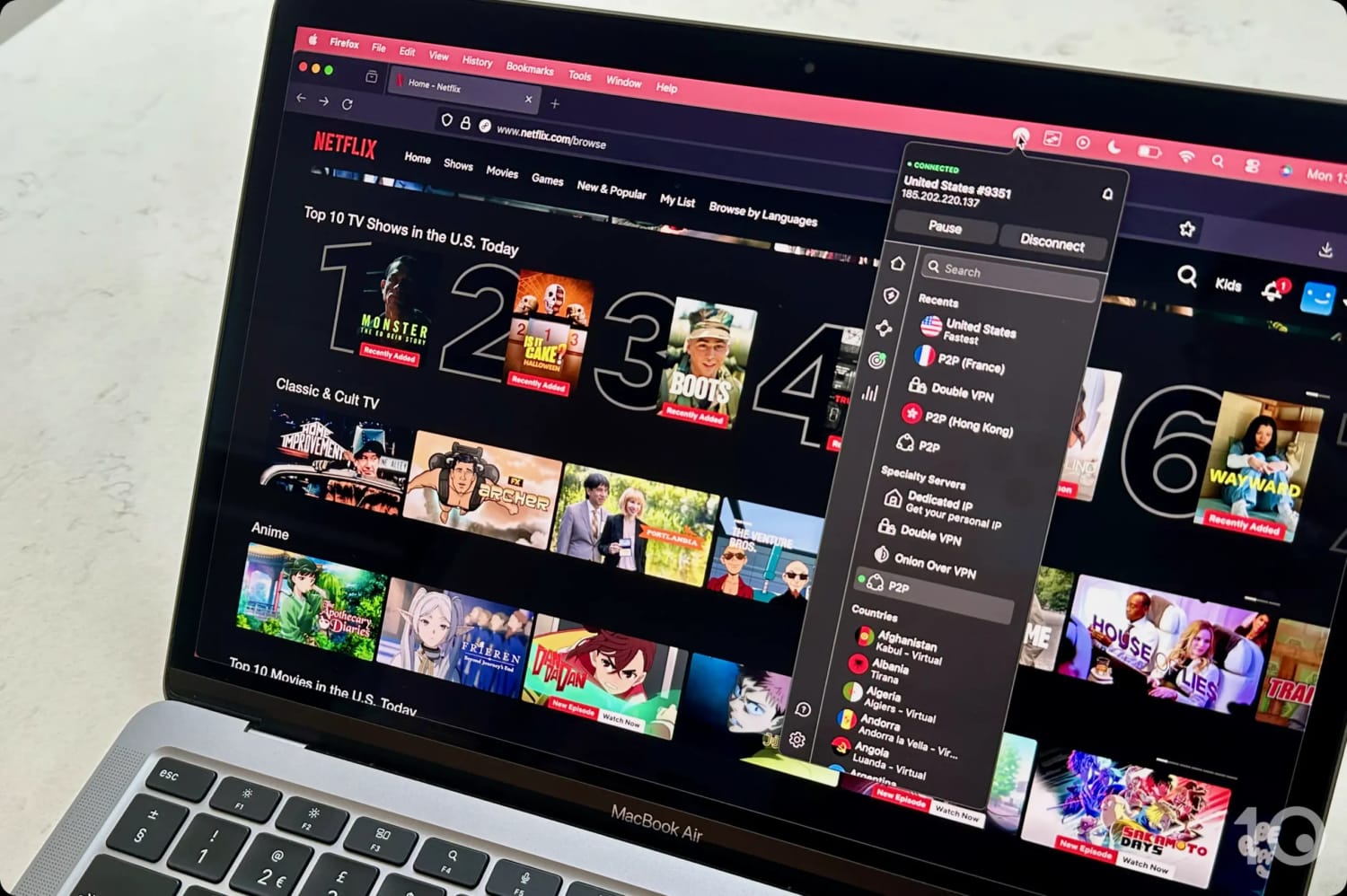
NordVPN is a great alternative VPN for Netflix, which works with many sought-after Netflix content libraries, including the US and UK.
It can also deliver marginally faster streaming speeds than ExpressVPN connecting to certain countries, although its device compatibility is slightly inferior.
Also, we’re not huge fans of the cluttered home screen of the PC and Mac apps, as well as the ‘Pause’ feature which adds unnecessary complexity to the turning off process.
NordVPN works reliably with US Netflix.
Offers Good Value with a Password-sharing Fix
With access to 17 Netflix regions, some of the fastest streaming speeds we’ve seen, and an affordable price of $3.39/mo over 24 months, NordVPN represents good value.
For context, Windscribe costs $2.36 more per month and only works with one more sought-after Netflix library.
Compared to ExpressVPN, it’s priced similarly and works with only 1 less region. That being said, NordVPN renews at a much higher price.
There’s also a trick you can use with NordVPN to save even more money: by using the VPN’s unique Meshnet feature, you can bypass the Netflix password-sharing ban and split the subscription cost with someone outside your household.
Doesn’t Access Some Popular Libraries
Sadly, NordVPN doesn’t provide access to as many desirable Netflix content libraries as ExpressVPN or Windscribe.
So far, we’ve been unable to access geo-restricted content from the Indian, Dutch, and South Korean content libraries.
That being said, NordVPN still works many other sought-after catalogs around the world, as we’ve listed in the section below.
Netflix Regions Unblocked
NordVPN works with the following libraries: Argentina, Australia, Brazil, Canada, France, Germany, Italy, Japan, Mexico, Poland, Singapore, South Africa, Spain, Sweden, Turkey, UK, and the US.
List of NordVPN servers that we’ve verified to work with popular Netflix libraries:
Dedicated apps for Firestick, Apple TV & Android TV
Browser extensions allow quick Netflix region changes
Unlimited simultaneous connections
Free plan works with 5 international libraries
Rather expensive
VPN subscription doesn't include Smart DNS proxy
Lacks real-time human customer support
Short refund period & no free trial
No app for routers
Pricing Plans
$9.00/mo
$5.75/mo over 12 months
Money-Back Guarantee
7 days (10GB limit)
Countries with Servers
69
Servers
120+
No. of Netflix Libraries
32
Simultaneous Connections
Unlimited
Support
Email & Online Resources Only
Compatible with
Windows
Mac
iOS
Android
Linux
Amazon Fire TV
Android TV
Apple TV
Router
Chrome
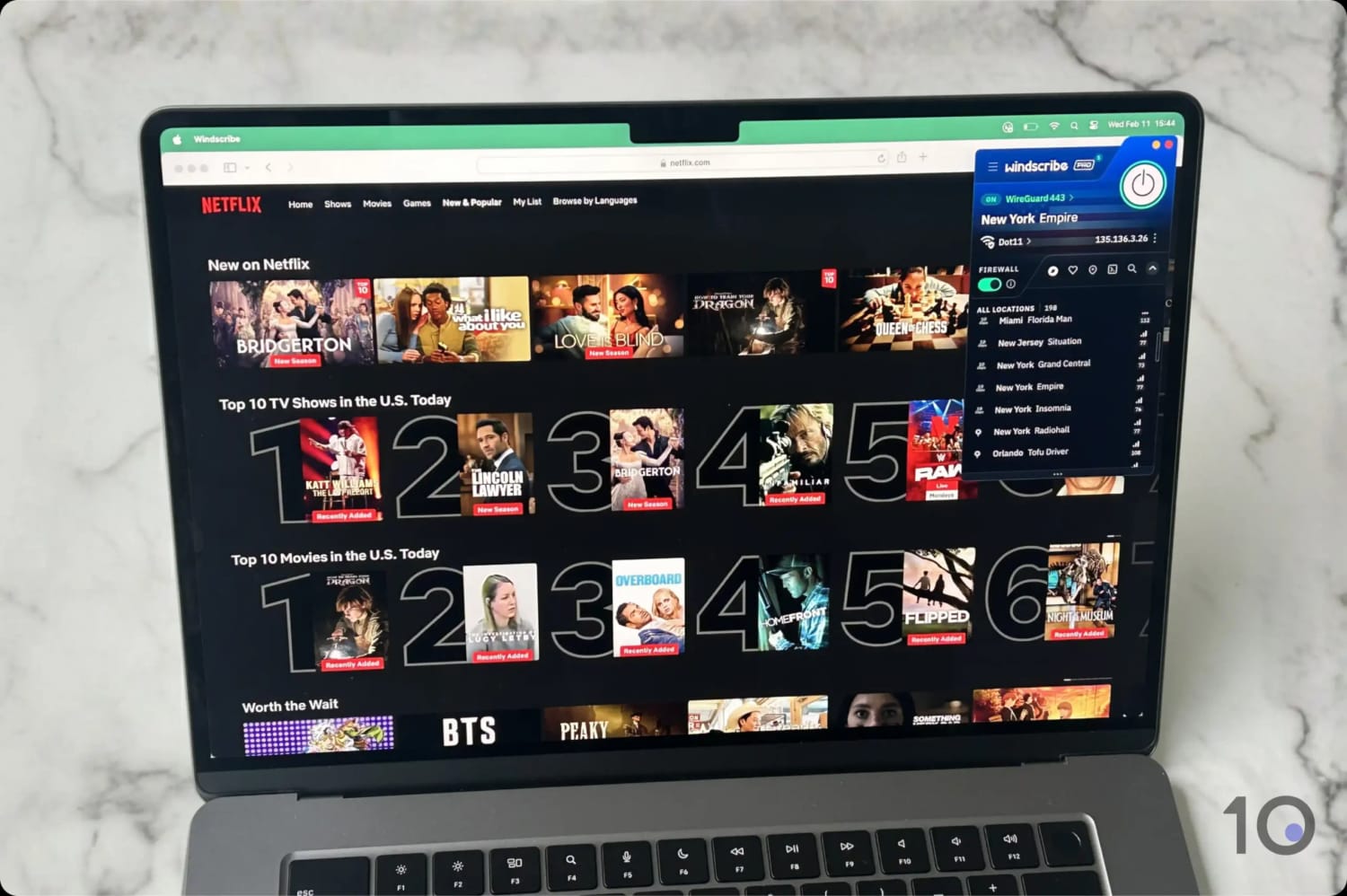
Windscribe is a superb option if you want to access the most amount of geo-blocked Netflix content around the world.
Contrary to what many other VPN review websites say (because they’re not being honest with you), we’ve discovered that Windscribe works with more Netflix regions than any other VPN.
However, we ranked it below ExpressVPN because of its poorer device support, and its slower international streaming speeds, which can cause issues.
Windscribe unblocks more Netflix regions than any other VPN.
Reliable Access to the Most Netflix Libraries
We tested 61 VPNs with Netflix in every country around the world, to identify which ones work with each Netflix region.
Our data shows that Windscribe can access more Netflix libraries than any other VPN: 32.
The benefit of this is that you’re more likely to gain access to whatever TV show or movie you’re after.
32 regions is far greater than any other VPN, including 26 more than Private Internet Access and 23 more than Surfshark.
Historically, Windscribe was inconsistent with popular Netflix libraries, like the US and Canada. Although it’s been working reliably recently, there’s no guarantee its performance will remain steady in the future.
Windscribe’s download speeds are more inconsistent than its rivals and, occasionally, we couldn’t stream at the maximum resolution.
If you have a Premium Netflix subscription that supports Ultra HD content, ExpressVPN or NordVPN are more suitable due to their more stable streaming speeds.
Free Plan Unblocks 5 Netflix Regions
Windscribe’s free VPN lets you unblock geo-restricted Netflix titles from France, Germany, Romania, Switzerland, and the UK. It’s in fact the free VPN that unblocks the most Netflix libraries.
However, in our Windscribe tests, its free apps failed to unblock American Netflix, one of the biggest and most popular content libraries.
This is a big disappointment, especially as Windscribe was previously the most dependable free VPN for accessing US Netflix, and we’d hoped the issue would be resolved by now.
To access the US Netflix library for free, you’ll have to use PrivadoVPN. Since both VPNs don’t cost anything, we actually recommend you use a combination of both for broader access to geo-restricted content.
Another limitation of using the free service is that it enforces a 10GB monthly bandwidth cap, which limits HD streaming to roughly four hours.
Netflix Regions Unblocked
Windscribe works with the following libraries: Argentina, Australia, Brazil, Canada, Colombia, Croatia, Czech Republic, Denmark, France, Germany, Hungary, India, Indonesia, Italy, Japan, Malaysia, Mexico, Netherlands, New Zealand, Poland, Portugal, Romania, Singapore, South Korea, Spain, Sweden, Switzerland, Thailand, Turkey, UK, USA, and Vietnam.
List of servers that work with the five most popular Netflix libraries:
Works with 8 fewer Netflix regions than ExpressVPN
Very limited server locations via browser extensions
Pricing Plans
$12.99/mo
$6.99/mo over 6 months
$2.03/mo over 28 months
Money-Back Guarantee
45 Days
Countries with Servers
100
Servers
12,000
No. of Netflix Libraries
10
Simultaneous Connections
7
Support
24/7 Live Chat
Compatible with
Windows
Mac
iOS
Android
Linux
Amazon Fire TV
Android TV
Apple TV
Router
Chrome
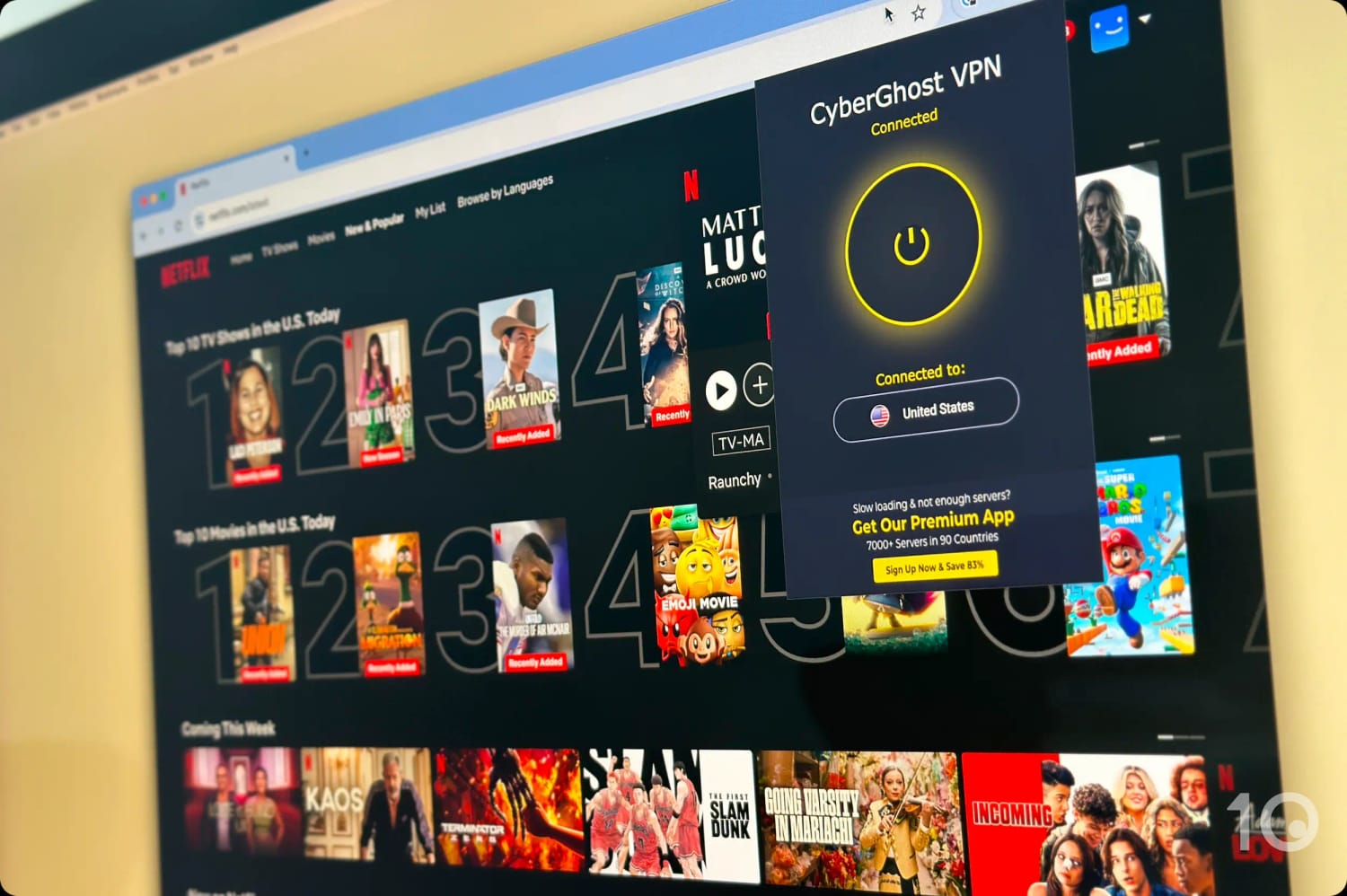
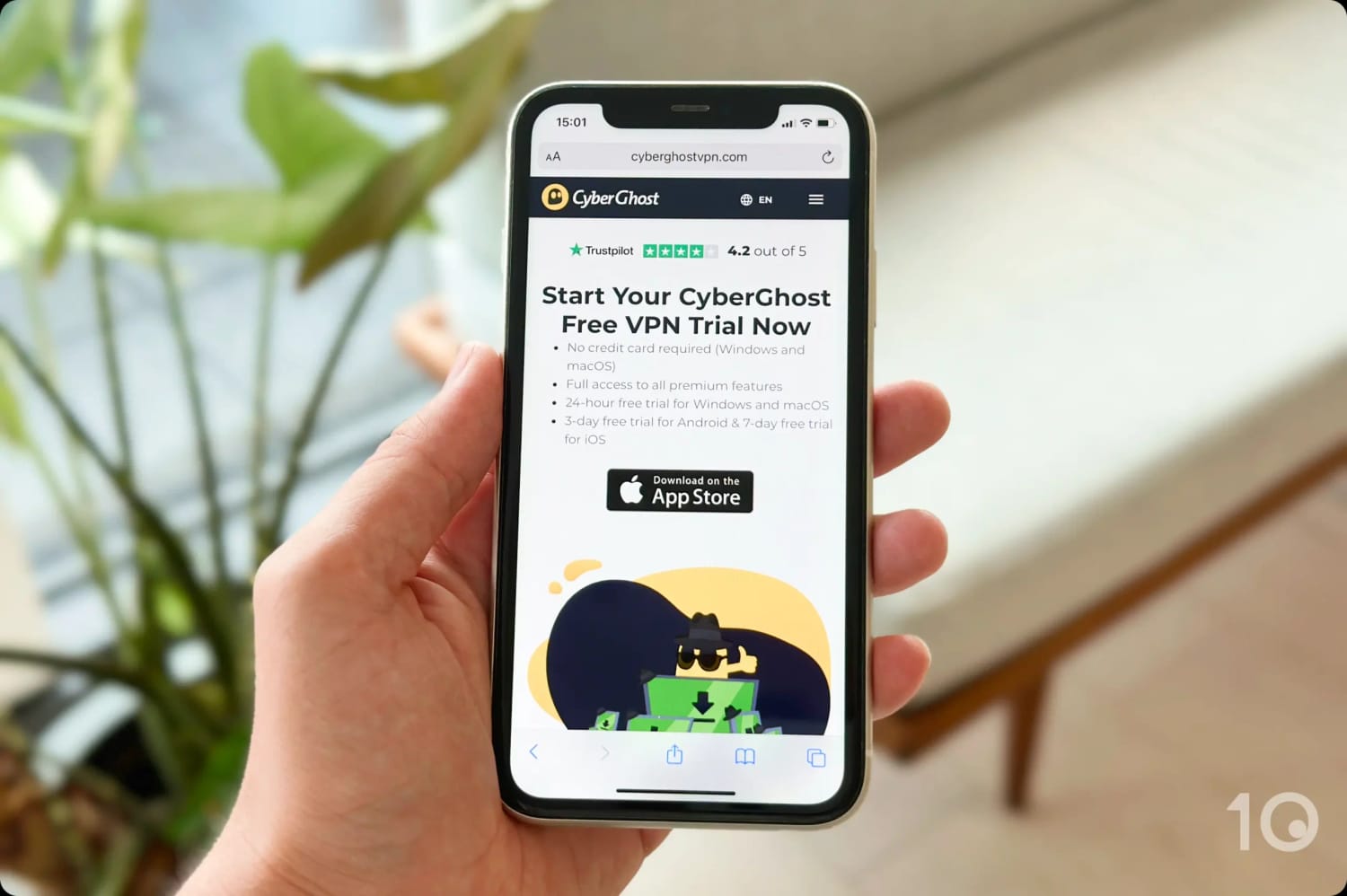
CyberGhost’s VPN apps aren’t free forever like Windscribe’s or PrivadoVPN’s, but you can use them for free for an extended period through multiple free trial options and a generous 45-day refund guarantee.
These trial options allow you to essentially stream 10 different Netflix libraries without paying extra.
Additionally, CyberGhost’s browser extension, which is completely free, always unblocks Netflix in the US and Germany.
CyberGhost offers multiple free trials and a free browser extension that works with US Netflix.
Firstly, there is a 1-day free trial on Windows and macOS with no payment details required.
Secondly, you can access a 3-day free trial on Android and a 7-day free trial on iOS, though these require payment details. Cancel before the trial ends to avoid charges.
CyberGhost offers the best free trial and an extended money-back guarantee.
Lastly, CyberGhost offers an industry-leading 45-day money-back guarantee. Unlike most VPNs that offer a 30-day refund, CyberGhost allows a full, risk-free refund for up to 45 days with yearly and multi-year subscriptions.
Good Speeds & Wide Device Compatibility
CyberGhost’s speeds are good, although the speed loss is higher compared to other leading VPNs.
We recorded a 19% decrease in speed when connecting internationally from the US.
While this speed loss isn’t catastrophic given some of the distances involved, we did experience longer loading times and occasional streaming interruptions.
We also prefer the user experience of ExpressVPN’s apps. Although CyberGhost’s apps work well on various streaming devices including Fire TV, Apple TV, and Android TV, they don’t perform as smoothly as ExpressVPN’s.
On a positive note, CyberGhost’s Smart DNS feature is unique in its ability to unblock both US and UK Netflix content, whereas ExpressVPN can only unblock the American library.
Netflix Regions Unblocked
In our tests, CyberGhost unblocked 10 regions: Australia, Canada, France, Germany, India, Japan, Singapore, Spain, UK, and the US.
Very few review websites, if any, will tell you that CyberGhost’s free Chrome browser extension still works with Netflix USA and Germany.
While the interface and design could really use an update, the extension remains functional and is an easy way to watch Netflix in-browser.
Finding a free VPN that works with Netflix isn’t easy. Most free VPNs are either too unsafe to use, or simply do not work with Netflix because their IP addresses have been blocked.
Helping you find the right VPN is at the heart of what we do. For this simple reason, we’ve gone over and beyond to unearth a truly great free VPN that will give you dependable access to multiple geo-restricted Netflix libraries.
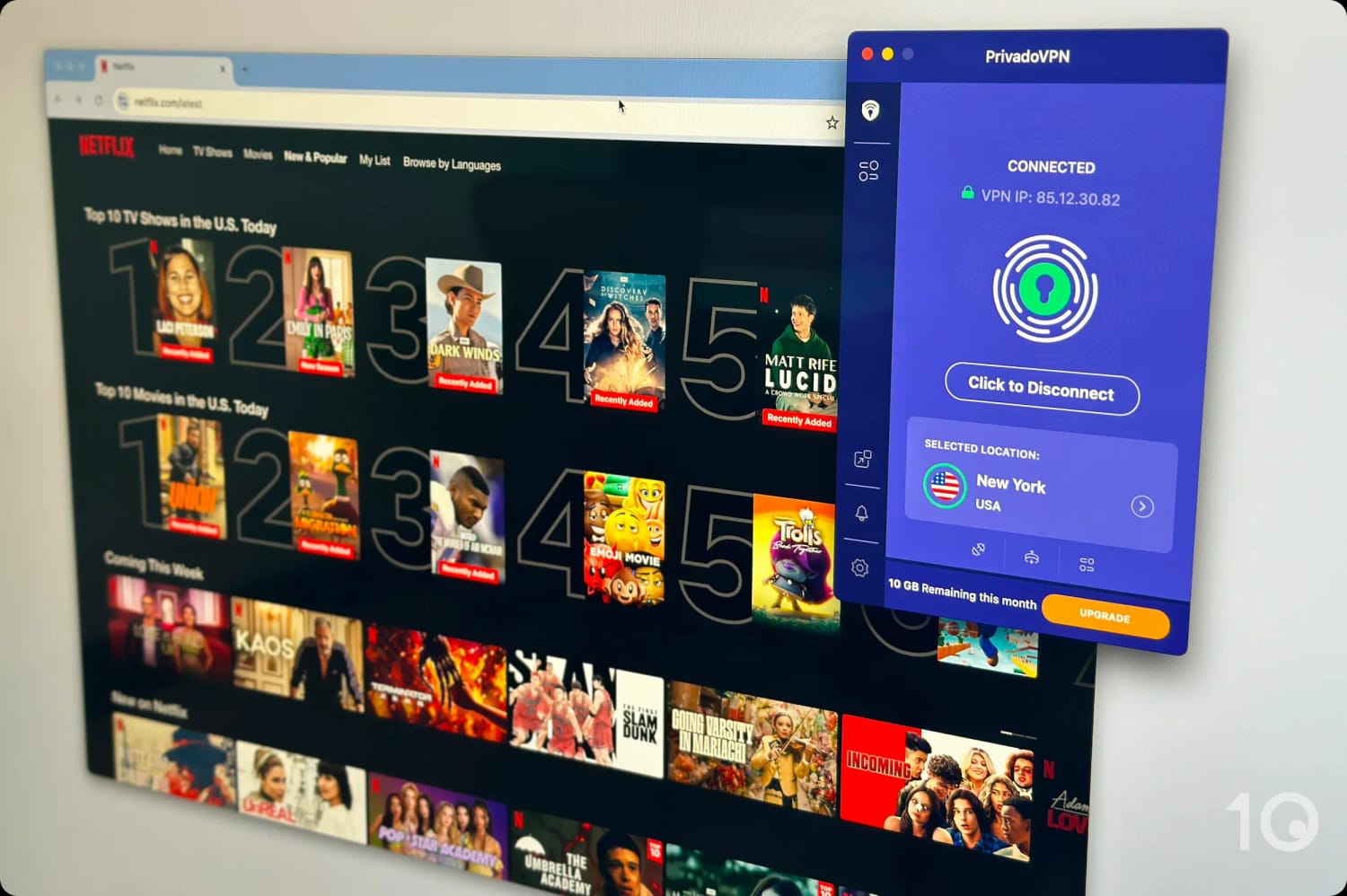
In our experience, PrivadoVPN is easily the best free VPN for Netflix.
For a long time we’ve used it to reliably stream geo-restricted content from both the US and UK Netflix libraries, two of the most sought-after regions.
However, our streaming experience was hindered by the free VPN’s monthly data cap of 10GB, which limited us to about 4 hours of viewing time. Sadly, this is a limitation with all safe free Netflix VPNs.
PrivadoVPN is the only safe free VPN that unblocks US Netflix.
The Best Free VPN for US Netflix
Our tests revealed that PrivadoVPN is one of the only free VPNs capable of unblocking Netflix USA.
PrivadoVPN can also access the UK Netflix library, enabling you to stream shows like It’s Always Sunny in Philadelphia and other UK-restricted titles.
However, with servers in only 11 countries, PrivadoVPN needs to expand its reach to more Netflix libraries and catch up with Windscribe, which currently unblocks 5 regions via its free service
We were especially frustrated by PrivadoVPN’s inability to access the French and German Netflix libraries, which Windscribe reliably unblocks. These regions offer a lot of licensed content, including popular shows like Yellowstone and The Vampire Diaries.
On the plus side, PrivadoVPN’s free servers deliver very fast speeds and a buffer-free streaming experience.
Its average international speed loss came in at only 8%, which is surprisingly better than the likes of ExpressVPN and CyberGhost.
This marginal internet speed loss also allowed us to consistently meet the 25Mbps Netflix requirement for 4K streaming without issue.
Free Apps for Major Streaming Devices
To its credit, PrivadoVPN offers user-friendly apps for every streaming device, including Apple TV, Fire TV, and Android TV. Switching between UK and US servers was easy on all these apps.
Its Android TV app is a standout, working seamlessly with American Netflix. The Fire TV app wasn’t as good, initially, suffering many abrupt crashes. We’re seeing less of those now, though.
PrivadoVPN’s Android TV app is better designed than other free VPNs, like Windscribe & Hide.me.
Where PrivadoVPN disappointed us was on mobile, with slow load times (over 60 seconds) and poorer video quality on iOS and Android compared to desktop.
Moreover, the lack of router support and Smart DNS functionality limited our ability to unblock Netflix on devices that don’t support VPN apps, like Roku and games consoles.
10GB Monthly Data Limit
PrivadoVPN doesn’t require any payment details whatsoever to use its free service, but it does impose a 10GB monthly data cap, which translates to about 5 episodes of a Netflix show per month.
PrivadoVPN also requires you to manually renew your data every 30 days, which is frustrating and in our opinion unnecessary, especially since competitors like Windscribe, Hide.me and TunnelBear don’t have this requirement.
By tunneling your internet traffic through a VPN server in a foreign location, you can hide your real physical location and trick Netflix into thinking you’re in a different country.
A VPN does this by assigning your device the VPN server’s IP address and replacing your real one.
On most devices, like desktop and mobile, you can do this easily by clicking/tapping on the country within the VPN app. However, the process is more complex on other devices, like Roku and Chromecast.
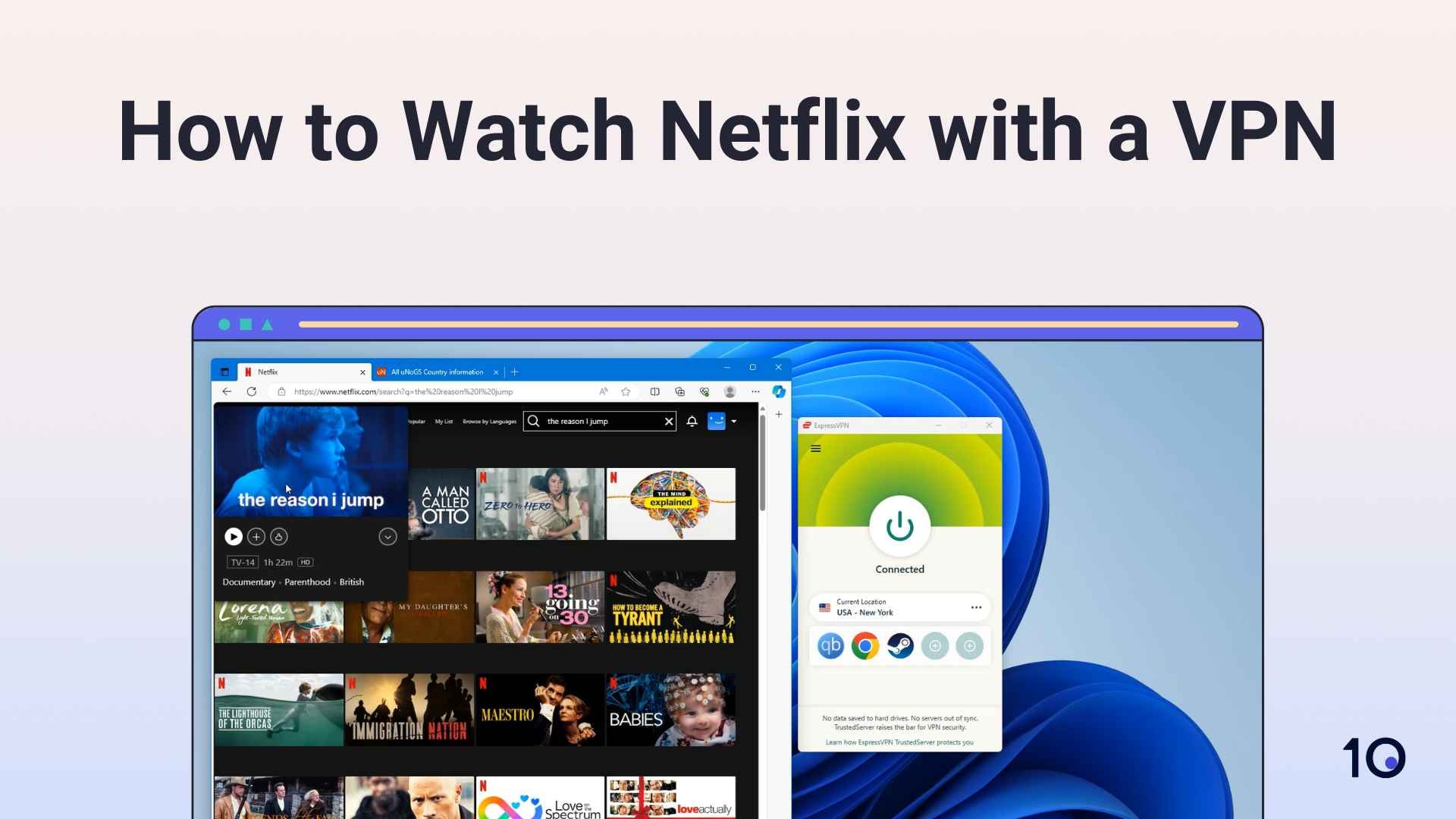
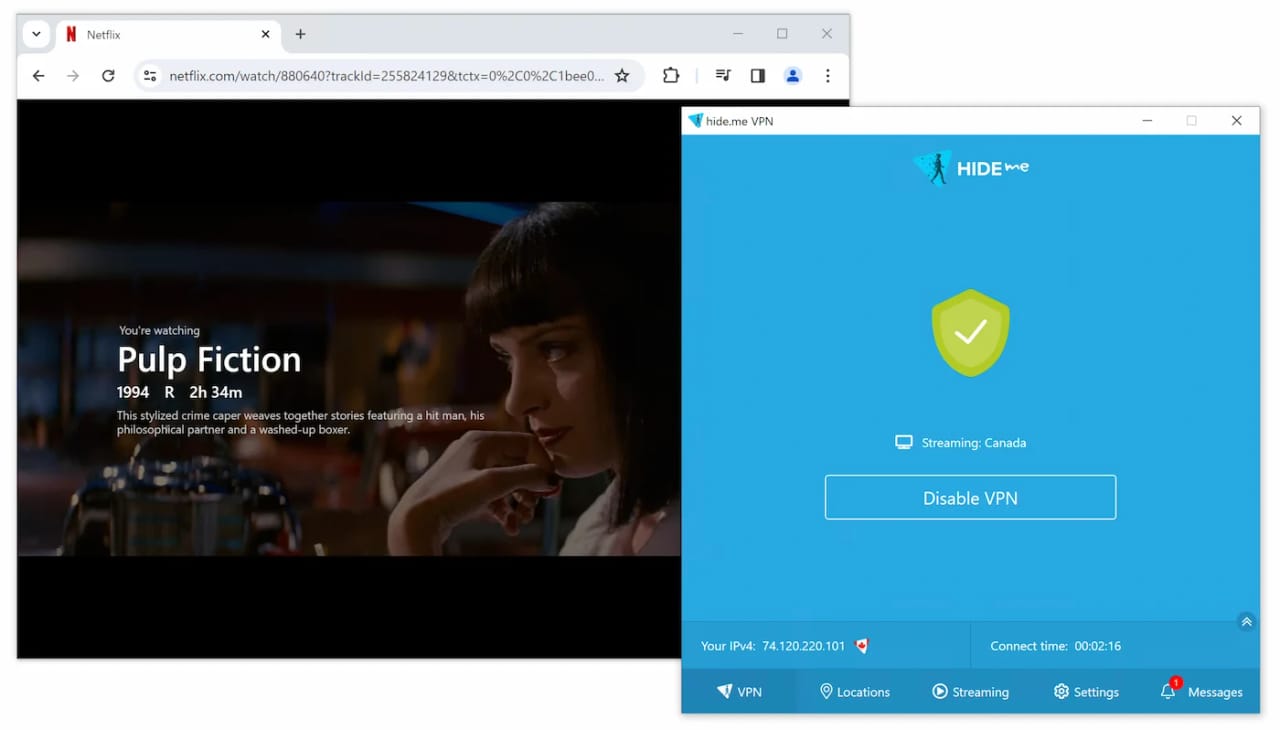
For a simple demonstration, watch this tutorial video on how we used a VPN on our laptop to unblock Netflix:
In the following sections, you’ll find step-by-step instructions on how to watch Netflix with a VPN on various devices.
If you still get a VPN error message after following our instructions, try one of our troubleshooting tips to fix your Netflix VPN not working.
Computer (PC & Mac)
Accessing a different country’s Netflix library is easy on a computer. Simply connect to a VPN server in the region you want to access by selecting it in the VPN app. Then, open Netflix in your web browser.
How to Unblock Netflix on PC & Mac
Identify which Netflix library has the content you want to watch: You can do this by entering the name of the movie or TV show into a searchable database, like uNoGS.
Subscribe to a VPN that works with the region you need to access: From our Netflix VPN tests, we found ExpressVPN to be the most reliable for multiple Netflix regions.
Install the VPN: Visit the VPN’s official website and download its app.
Connect to a VPN server in the country you identified in Step 1: In the VPN app, select and connect to a server in your desired country.
Open Netflix in a browser that supports high-resolution Netflix video:
Windows: Microsoft Edge supports up to 4K streaming. Note: Chrome’s resolution is limited to 1080p (Full HD).
Mac: Use Safari for up to 4K streaming capabilities.
Confirm you’re seeing the correct country’s library: Click the ‘New and Popular’ tab on the top of the screen. Check the “Top 10 in [country] Today” section to ensure you’re in the correct country’s library. If it displays another country, clear your browser cache.
Search for the TV show or movie you want to watch and click play.
Check the streaming quality: Use keyboard shortcuts Ctrl+Alt+Shift+D (Windows) or Ctrl+Option+Shift+D (Mac) to view streaming details. Confirm that the resolution next to “Playing bitrate (a/v)” is at least (1920×1080).
Mobile (iOS & Android)
Unblocking international Netflix content on mobile devices is also simple. However, we noticed there are some unique differences compared to streaming on a computer.
For instance, the Netflix mobile app can override your VPN’s DNS settings, forcing the app to use its own DNS servers. This allows Netflix to detect VPN traffic on mobile more effectively, making some VPNs useless for mobile streaming.
Download and install the VPN: Do this by searching for the name of the VPN in your device’s app store (Google Play for Android, App Store for iOS).
Connect to a VPN server in your desired Netflix region.
Open the Netflix app: If you had it open prior to activating the VPN, make sure to close and reopen the app to refresh its connection.
Search for the content you want to watch and tap it to start streaming.
Troubleshooting tips for mobile Netflix streaming:
Restart your device: Doing this can clear the Netflix app’s cache, ensuring it doesn’t remember a previous location. Closing the app is not always sufficient.
Switch profiles: We’ve found doing this can refresh the connection, resolving any lingering issues.
Streaming Devices (Fire TV, Android TV & Apple TV)
When using a streaming device, it’s much easier to access geo-restricted content on Netflix compared to other streaming services, where changing your app store region is often necessary
Since the Netflix app is the same in every country, you can use the version already installed on your device. Alternatively, you can simply download it from the device’s app store while signed into your regular account.
How to Unblock Netflix on Streaming Devices
Choose a VPN with an app for your device: you’ll need to sign up using a desktop or mobile device, as direct subscriptions through streaming devices are not possible.
Download and install the VPN from the device app store.
Open the VPN app and log in: You’ll typically need to authenticate your account by visiting a specific web page on another device and entering a provided code.
Connect to a server in the country you want to access.
Open the Netflix app and stream the content.
Troubleshooting tips for Netflix streaming on streaming devices:
Connect to a server that we’ve verified works with Netflix: Some VPNs have specific servers that work better with Netflix, especially for Fire TV. For example, only a quarter of Private Internet Access’ US servers are successful in streaming Netflix content on Fire OS.
Restart your device: Doing this can clear the Netflix app’s cache, ensuring it doesn’t remember a previous location. Closing the app is not always sufficient.
Switch Netflix profiles: We’ve found doing this can refresh the connection, resolving any lingering issues.
Roku, Chromecast & Game Consoles
Roku, Chromecast, and game consoles like PS5 and Xbox don’t support VPN apps. Additionally, content-sharing solutions, like Casting, only work with Netflix if both the devices are connected to the same VPN server.
That said, you can still access different Netflix regions on these devices by either using a VPN-enabled router, installing a VPN on your existing router, or setting up a mobile hotspot on a Windows PC.
The latter is often the quickest and easiest option as it’s more likely you already have the required hardware.
How to Unblock Netflix on Roku, Chromecast & Game Consoles
Choose a VPN that’s compatible with your desired Netflix library: You can find out which VPN works using the results from our research.
If using Chromecast, download the Netflix app onto your mobile device: You can ignore this step if you’re watching on Roku or a games console.
Enable the mobile hotspot: Go to Settings > Network & Internet > Mobile hotspot and toggle to On.
Configure the mobile hotspot.
Go back to Network & Internet > Status > Change Adapter Options.
Right-click on your VPN’s TAP Adapter and select Properties.
In the Sharing tab, tick the Allow other network users to connect through this computer’s Internet connection box.
Under Home networking connection, select Local Area Connection*.
Open the VPN app on your Windows PC and change protocol to OpenVPN: The mobile hotspot won’t work if a different protocol is selected.
Connect your PC to a VPN server in the country with the Netflix content you want: You’ll also need to do this on your mobile device if using a Chromecast.
Connect to your mobile hotspot WiFi connection from your Chromecast, Roku or games console: Restart them to clear any cached data.
If using Roku, you must reset the Netflix app for the location change to register: Hover over the Netflix app, press the asterisk button on your Roku remote, and select Restart channel from the options that appear.
Start streaming the Netflix content you want to watch: On Chromecast, Cast the content from your mobile device. On Roku, simply open the Netflix app.
How to Fix Your VPN Not Working with Netflix
We’ve listed below five simple workarounds to fix any VPN issues you may be having with Netflix.
This is because most VPNs won’t ever work with Netflix, no matter what workarounds you attempt. The majority lack the necessary technology, prioritize other software features, or don’t have the resources to unblock Netflix.
Our recent tests confirm that using ExpressVPN with Netflix is still the most reliable way to beat the latest Netflix VPN ban.
The service works consistently with US Netflix and 17 other libraries.
If you want a 100% free VPN that unblocks Netflix, PrivadoVPN’s free service is currently the best. It works with Netflix USA and UK, but it’s limited to just 10GB of free data per month.
2. Connect to a Different Server
If you can’t access Netflix using a VPN, it means that Netflix has identified and banned the IP address of the server you’re connected to.
To get a new IP address, simply connect to another server in the same country. There’s a chance that the new server won’t be blocked by Netflix yet.
Alternatively, use the table below. We’ve collected a list of servers from the best VPNs that work with popular Netflix regions.
Just connect to one of these servers to stream the specified Netflix region:
VPN Service
Working VPN Servers
ExpressVPN
Canada: Canada – Toronto India: India (via Singapore) Japan: Japan – Tokyo UK: UK – Docklands US: New Jersey - 1
Windscribe
Canada: Toronto – Mansbridge India: Mumbai – Mahim Japan: Tokyo – Kaiju UK: London – Crumpets US: New Jersey – Situation
NordVPN
Canada: Canada #1614 Japan: Japan #623 UK: United Kingdom #2290 US: United States #6779
Once connected, refresh your browser on desktop or relaunch your app on mobile.
3. Delete Browser Cookies & Cache
Many websites collect temporary location data through cookies and cache files.
Netflix can use this information to identify your true location, even when you’re connected to a VPN server in a different country.
Clearing these files will force Netflix to show the library of the server you’re connected to.
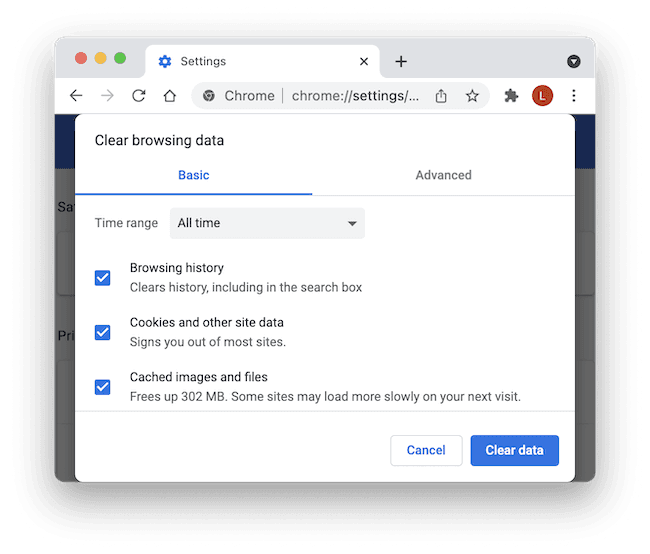
How to clear cookies and cache in Google Chrome:
Open Google Chrome. Click the icon that looks like three dots at the top right of the window.
Select More Tools > Clear browsing data, then from the drop-down menu select All time.
Tick Cookies and other site data and Cached images and files.
Click Clear data.
Relaunch Google Chrome.
Open Netflix.
Clearing cookies and cache files in Google Chrome.
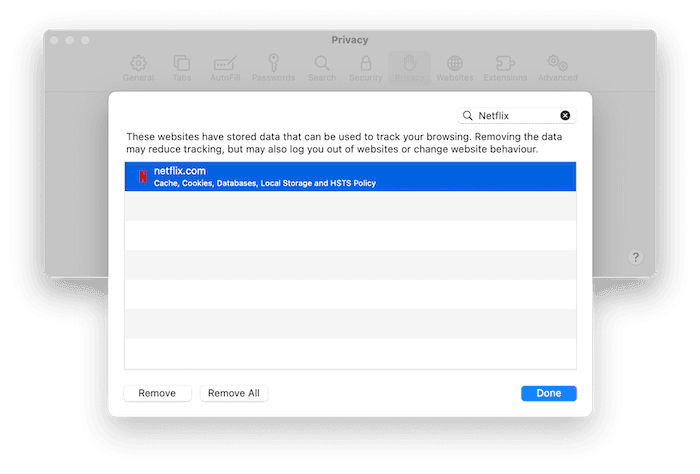
How to clear cookies and cache in Safari:
Open Safari. Open the Safari menu then click Preferences.
Click the Privacy tab > Manage Website Data.
Type Netflix into the search bar, select it, then click Remove.
Relaunch Safari.
Open Netflix
Clearing cookies and cache files in Safari.
Note: This method only works on desktop. On mobile, you will have to restart your device to clear Netflix’s cache and cookies.
4. Disable IPv6
Netflix decides the library to show you based on your IPv6 address, not your IPv4 address (if you have one).
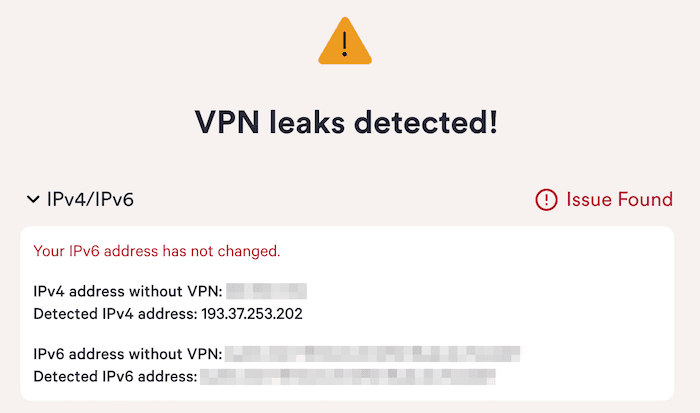
The problem is that many VPNs still don’t support IPv6. If your IPV6 address leaks through the VPN tunnel, Netflix will show your local library.
For example, when testing it with a US server, Betternet was leaking our IPv6 address. This meant that we could only stream TV shows and movies from our local UK Netflix library.
For added assurance, we recommend blocking IPv6 on your device, rather than using your VPN’s built-in settings.
How to disable IPv6 on Windows:
Open Network & Internet settings.
Select Network & Sharing Center > Properties.
Uncheck Internet Protocol Version 6 (TCP/IPv6).
How to disable IPv6 on Mac:
Open System Preferences and click Network.
Click Advanced in the bottom right. Click the TCP/IP tab.
Click the dropdown menu next to Configure IPv6 and choose Off.
Some VPNs come with Smart DNS functionality. Smart DNS can be used to change Netflix regions without having to connect to a VPN server.
Since the August 2021 Netflix VPN ban, our tests have found that Smart DNS is much more reliable for unblocking Netflix than full VPN services.
Smart DNS routes your internet traffic through a proxy server somewhere else in the world. However, unlike a VPN, it doesn’t encrypt your traffic. Nor does it include other security features.
Normally, we don’t recommend using Smart DNS. However, if you just want to stream a geo-restricted Netflix library and you’re not concerned about privacy, Smart DNS is a fine option.
Here are the VPNs we recommend that offer Smart DNS functionality:
ExpressVPN (US & UK Netflix Only)
NordVPN (US Netflix only)
CyberGhost (US, UK, Germany, and Japan)
Each VPN has a different method for setting up Smart DNS. Visit your VPN provider’s support page for instructions.
How to Bypass Netflix VPN Error Codes
When your VPN isn’t working with Netflix, you will encounter a range of error codes or problems with the service.
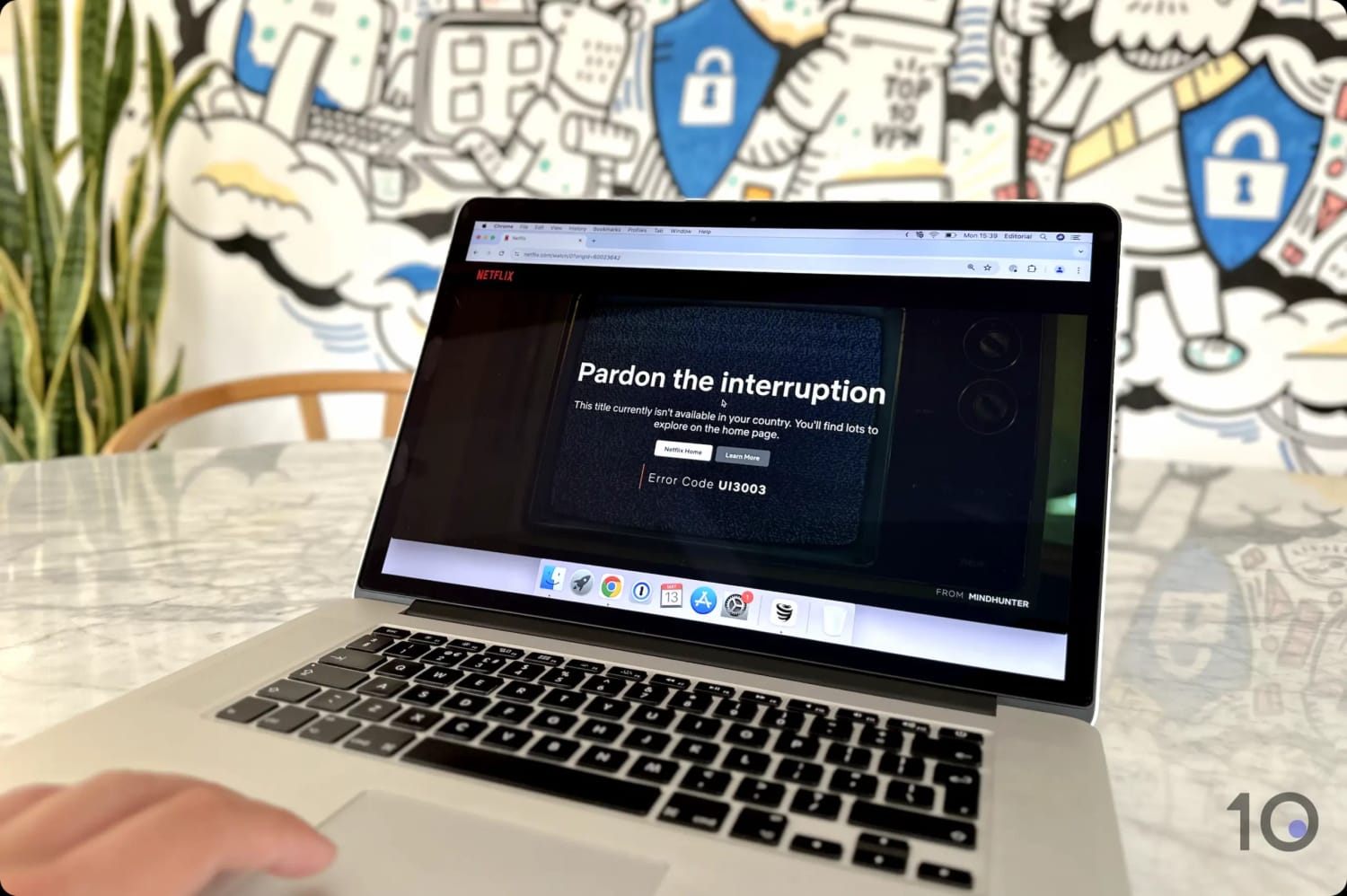
Netflix’s ‘Pardon the interruption’ streaming error message.
Here’s how to bypass the most common Netflix error messages:
M7111-1331-5059: “Pardon the Interruption”
Netflix displays the error code: m7111-1331-5059 when it detects a VPN connection. You’ll see it when clicking play on a geo-restricted TV show or movie.
22004: “This Title Is Not Available to Watch in Your Area”
You’ll see this error code on your iOS device when Netflix detects you are using a VPN to stream a region-locked video.
For example, we encountered this error when trying to watch the TV series ‘Power’ on a blocked UK VPN server.
To fix this, connect to a working VPN server from those we’ve listed above. As well, use uNoGS to ensure the content is available in the country that you’re connected to.
UI3012: “Pardon the Interruption”
This error code is triggered when there is a general problem with your network.
If Netflix detects you’re using a VPN, it will only display Netflix originals. As Netflix owns the global distribution rights for these titles, there’s no need for it to geo-lock them.
This also applies to licensed content that Netflix has since purchased the global rights for. For example, you can also stream Seinfeld and Monty Python even if Netflix knows you’re using a VPN.
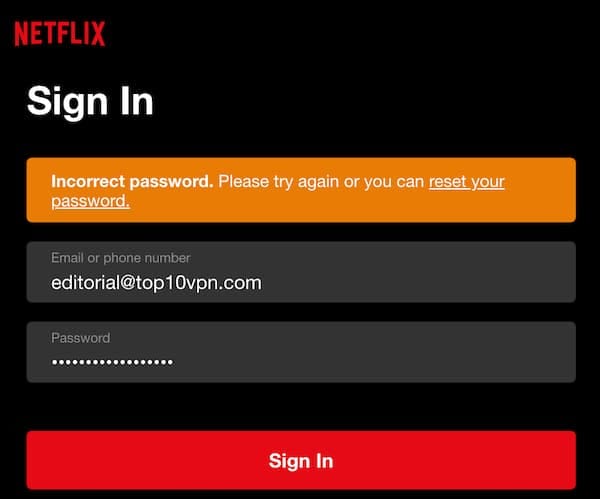
If Netflix has blocked the IP address of your VPN server, it’ll sometimes stop you from signing in. You will be shown an ‘Incorrect password’ error, even when your details are correct.
This error is more common on low-rated VPN services, like X-VPN and Hidester.
To meet or exceed our strict Netflix VPN testing criteria, a VPN must do more than just access Netflix. It requires a combination of fast download speeds, extensive device compatibility, and excellent customer service.
Contrary to the recommendations of other VPN review websites, we’ve discovered that many popular VPNs fail to meet these standards.
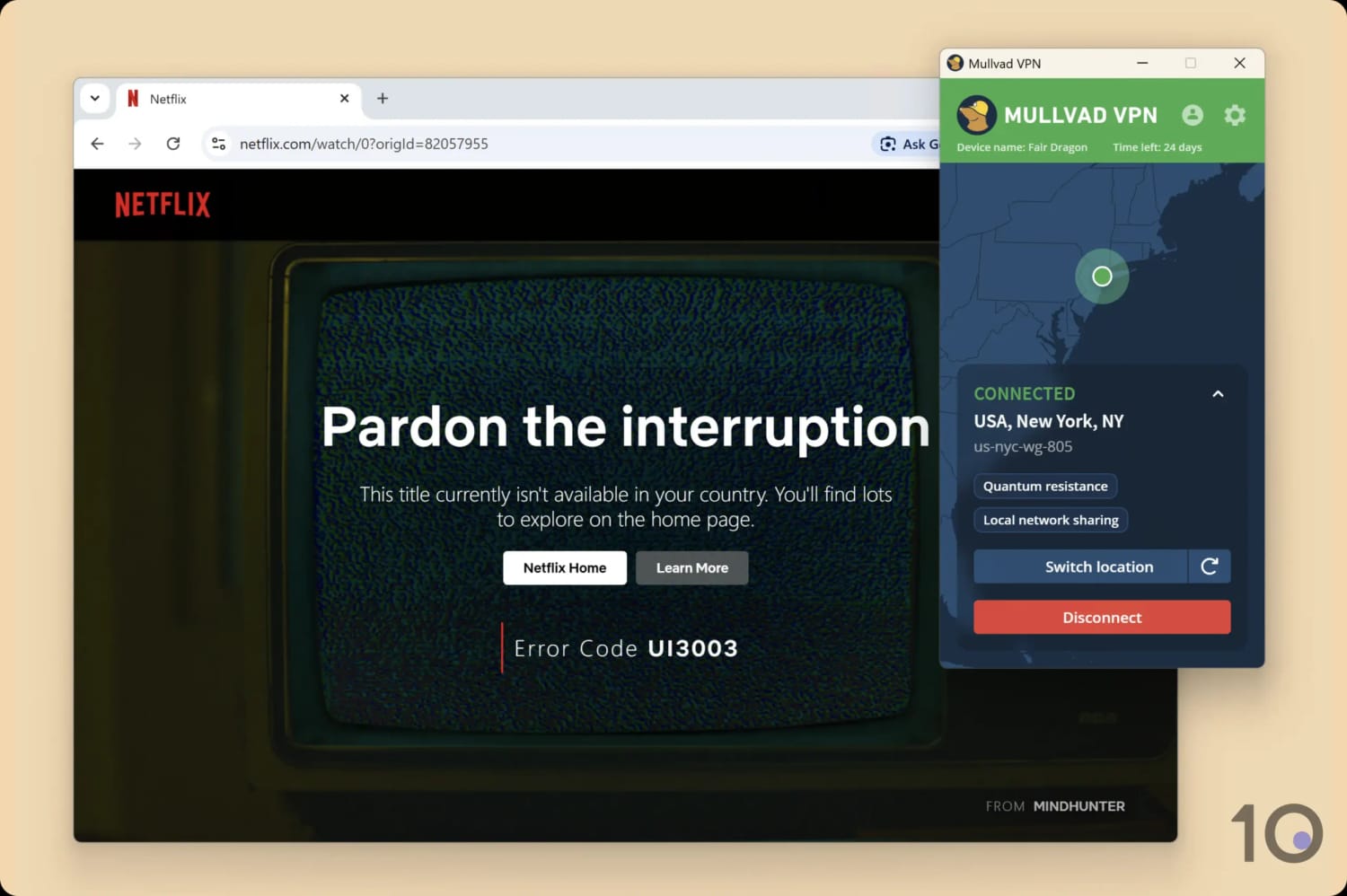
Mullvad failed to unblock US Netflix on multiple attempts.
Here are some popular VPNs that successfully unblocked country-specific Netflix regions, but fell short in other areas.
Hide.me
Why It Didn’t Make Our List
Doesn’t work with Netflix in Australia or India
Requires connecting to dedicated streaming servers
No Smart DNS feature
No dedicated router app
Hide.me has improved more than any other VPN with Netflix over the last year of our testing. The VPN has almost doubled the number of accessible Netflix libraries from 6 to 11. It’s also one of only a few VPNs that provides an app for Apple TV.
Despite these improvements, the VPN still falls short of our top three recommendations for Netflix. It unblocks 66% fewer libraries than Windscribe and 66% fewer than ExpressVPN. It also still can’t access Netflix in Australia or India, so content choices are limited.
It’s also one of the only top VPNs without a Smart DNS feature, so you’ll have to set up a mobile hotspot or install it on a router for accessing Netflix on a Smart TV or games console.
IPVanish
Why It Didn’t Make Our List
No Smart DNS feature
No dedicated router app
Doesn’t unlock quite as many Netflix libraries at our top picks
IPVanish unlocks the most Netflix libraries (16) of any VPN that didn’t make the cut. Only our very top picks had better compatibility with Netflix regions around the world.
IPVanish also lacks Smart DNS and a dedicated router app, unlike our top pick ExpressVPN.
But, if ExpressVPN is out of your budget and neither Nord nor Windscribe appeal to you then IPVanish is a worthy alternative for accessing Netflix.
Private Internet Access
Why It Didn’t Make Our List
Doesn’t work with Netflix in Canada, France, Germany, or Japan
Requires connecting to dedicated streaming servers
Only 25% of US servers work with Netflix on its Fire TV app
Smart DNS feature doesn’t work with Netflix
No dedicated router app
Private Internet Access (PIA) once provided access to 10 Netflix libraries but has seen its performance halve to 6: it now doesn’t work with Brazil, Japan, the Netherlands, Spain, or Turkey.
This, in combination with PIA’s poor streaming device compatibility, means there are now far better Netflix VPNs available.
PrivateVPN
Why It Didn’t Make Our List
Inconsistent access to US Netflix
Doesn’t work with Netflix in France, Germany, or Japan
Slow global speeds
No Smart DNS feature
No dedicated router app
PrivateVPN is compatible with the fifth highest number of Netflix libraries, unblocking 10 total Netflix regions, including the popular Australia, Canada, India, and UK libraries.
However, unlike the other VPNs in this list, PrivateVPN was extremely unreliable with US Netflix. Though it worked more often than not, we would have to connect to multiple different servers before finding one that was compatible. And sometimes, none would work at all.
Proton VPN
Why It Didn’t Make Our List
Inconsistent access to US Netflix
Only works with 6 overall
No Smart DNS proxy
No dedicated router app
Despite making massive progress on the streaming front in recent years, Proton VPN still struggles with some Netflix regions.
While it works with US Netflix, although inconsistently, it can’t unblock popular regions like the UK, Canada, Australia, or Japan.
Surfshark
Why It Didn’t Make Our List
Doesn’t work with Netflix in Australia, Germany, or Japan
Slower international download speeds
No dedicated router app
Despite claiming to work with every Netflix region to “view all of the content that Netflix has to offer,” our research found that Surfshark in reality only works with 9 Netflix libraries.
This is 9 and 8 fewer than ExpressVPN and NordVPN respectively. Moreover, unlike these VPNs, it can’t access the popular Netflix libraries of Australia, Germany, and Japan.
VPNs That Don't Work At All
Here’s a comprehensive list of VPNs that didn’t work with any Netflix library in our tests:
AirVPN
Avast VPN
Avira VPN
Betternet (Free)
Bitdefender VPN
Free VPN by FreeVPN.org
Hide.me (Free)
Hotspot Shield Basic
Kaspersky VPN (Free & Paid)
McAfee VPN
Mozilla VPN
Mullvad
Perfect Privacy
Proton VPN (Free)
Psiphon Proxy
Psiphon VPN
SkyVPN
Snap VPN
SuperVPN (Free)
Thunder VPN
TorGuard
Touch VPN
TunnelBear (Free & Paid)
Turbo VPN
VPN 360
VPN Proxy Master
VPNBook
X-VPN (Free)
ZoogVPN (Free & Paid)
Checklist: How to Choose a VPN for Netflix
To give you the best streaming experience with Netflix, a VPN must have certain features and attributes. If not, it will most likely let you down in the long run.
That being said, if you still want to do your own research, then we’ve listed below the non-negotiable characteristics of a high-quality Netflix VPN:
✅ Unblocking: Beats Netflix’s VPN blocks in countries with popular content titles.
✅ Speed: Fast & consistent download speeds to stream smoothly at maximum resolution.
✅ Device Support: User-friendly apps for all popular devices. A Smart DNS proxy & router app are great extras.
✅ 10 Gbps Servers: A high number of responsive servers in key Netflix countries.
✅ Modern VPN Protocols: Up-to-date protocols like WireGuard and proprietary alternatives (like Lightway and NordLynx) that use obfuscation to mimic standard internet traffic.
The cost of a VPN is also going to be a factor, although it’s also very subjective: what’s cheap for you may be expensive for someone else.
Last but not least, you should never use an insecure and untrustworthy VPN, to avoid nasty surprises. Therefore, even if you plan to use a VPN just for streaming, the below criteria is still very important:
✅ Privacy: Proven no-logs policy, RAM-only servers & legally based in a privacy-first jurisdiction.
✅ Security: WireGuard/OpenVPN protocols, AES-256/ChaCha20 encryption, VPN kill switch & no IP leaks.
How We Test VPNs for Netflix
We manually tested 61 VPNs using our unique Netflix methodology to select the most effective and consistent services for unblocking geo-restricted Netflix titles.
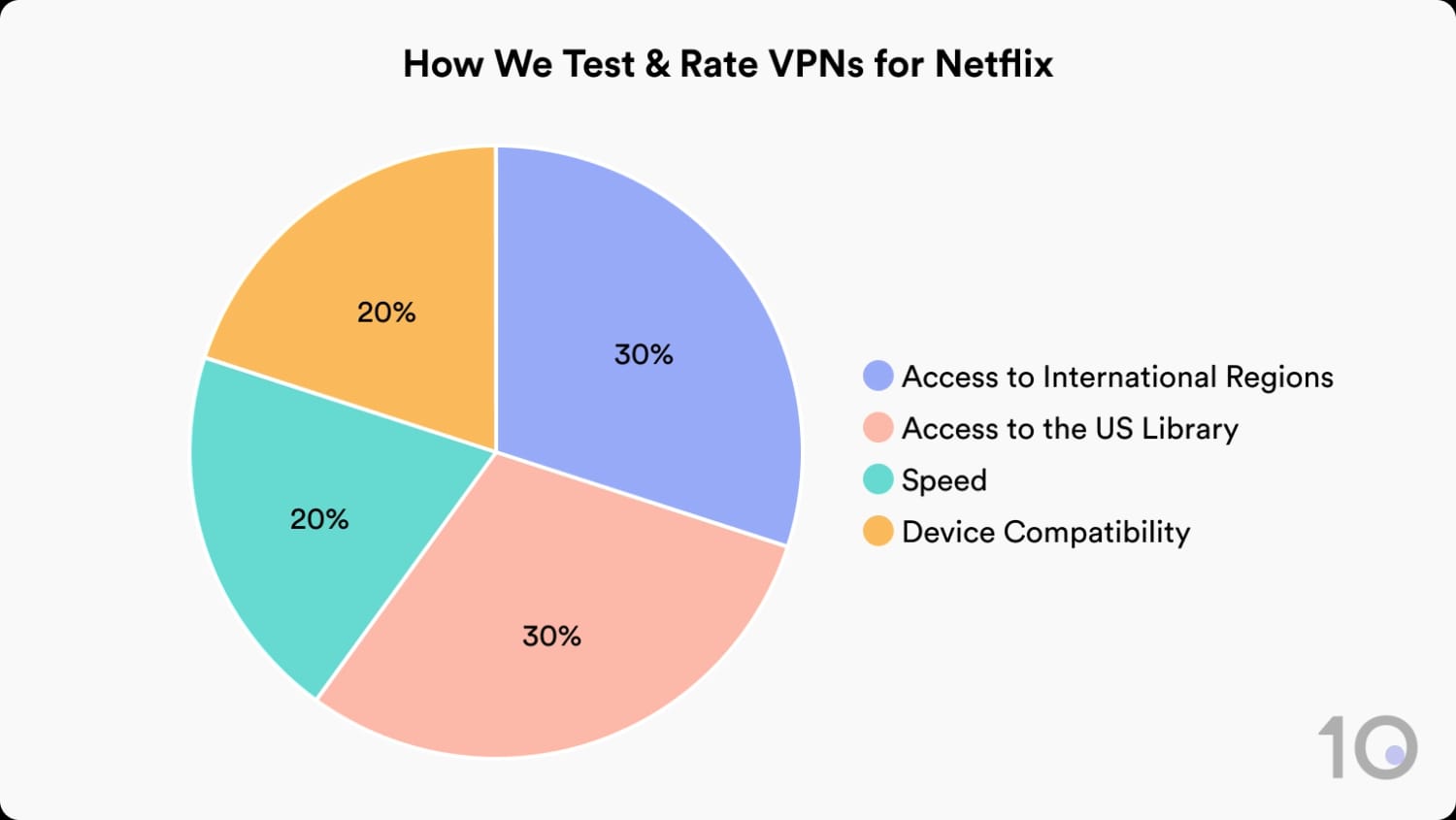
Each VPN is rigorously assessed against the following four criteria:
The results of our tests are objective and quantifiable, reducing the risk of human bias or error. We perform these tests frequently to ensure our assessments and advice are accurate, as of writing.
The table below illustrates how our top-rated Netflix VPNs performed in our Netflix-specific tests:
VPNs with a data cap receive a reduction to their overall rating.
Below you can read a detailed explanation of how we test and rate each VPN for each category:
1. Access to International Regions (30%)
The more Netflix regions a VPN can access, the higher your chances of being able to access the content you want to watch.
According to our research, the most sought-after Netflix content catalogs, outside the United States, are Australia, Canada, France, Germany, India, Japan, and the UK. As such, VPNs that unblock these regions earn a higher rating compared to those that access less popular regions.
How We Test
To test a VPN’s performance in this category, we manually connect to VPN servers in the target country. The key part of our test is streaming specific titles that are unique to that particular region.
Rating System
Desirable Libraries (maximum 7 points): VPNs earn 1 point for every primary library (Australia, Canada, France, Germany, India, Japan, UK) they can access.
Additional Libraries (maximum 3 points): Access to any of the other international Netflix libraries we tested grants the VPN an additional 0.1 points.
2. Access to the US Library (30%)
As the United States is the most popular Netflix region in the world, it’s essential for a top-tier Netflix VPN to access it reliably.
How We Test
We manually connect to a VPN’s US servers and attempt to stream titles exclusive to the American Netflix library. If it streams successfully on all/most servers, it passes the evaluation.
We regularly repeat these tests, allowing us to track every VPN’s performance over time. If a VPN can’t access US Netflix for two consecutive test runs, we adjust its rating.
Rating System
0.0: Can’t access US Netflix on any server.
0 – 9.9: Varying reliability with US Netflix.
10: Works reliably with US Netflix.
3. Speed (20%)
Streaming is a data-intensive activity, so your VPN needs to provide fast download speeds to avoid buffering. As you’ll be using a VPN to access Netflix regions from around the world, the VPN’s long-distance speed performance is a key factor.
How We Test
We conduct speed tests using our proprietary speed test tool. We perform 12 individual speed tests from VPN servers located in eight regions: the West and East Coasts of the US, Australia, Brazil, Canada, Germany, Japan, South Africa, and the UK.
The final speed rating for each VPN is derived by calculating the average of these 12 test results, ensuring a well-rounded evaluation of its performance.
Rating System
Download Speed: 80%
Upload Speed: 10%
Latency: 10%
A VPN that maintains an average speed loss below 5% scores maximum points, with ratings dropping for slower speeds.
Our speed scale starts at 0.1, indicating significant Netflix streaming interruptions, and maxes out at 10, reflecting a seamless streaming experience.
4. Device Compatibility (20%)
To stream geo-blocked content across all of your devices, a VPN needs to be compatible with all of them, including more challenging platforms like Roku and game consoles.
How We Test
We test a VPN’s software for all the devices typically used for streaming Netflix, including Fire TV, Android TV, and Apple TV. We also evaluate the effectiveness of any Smart DNS proxy and router configuration for devices like game consoles and Roku.
Rating System
Fire TV app: 2 points
Android TV app: 1.75 points
Apple TV app: 1.5 points
GPS Spoofing: 0.25 points
Smart DNS (works with one country): 2 points
Smart DNS (works with 1+ country): 2.5 points
Router app: 2 points
Pre-flashed router available: 1.5 points
Data Cap Penalty
Most free VPNs come with a data cap. This is there to incentivize users to pay for the subscription service.
This data cap will limit the amount of movies and TV shows you can watch on Netflix. As such, we apply a penalty to the VPN’s final overall Netflix rating based on its data cap:
Unlimited bandwidth: No deduction to the overall rating
10GB per month: -20% to the overall rating
500MB per day: -25% to the overall rating
5GB per month: -30% to the overall rating
1GB or 2GB per month: -35% to the overall rating
200MB per day: -40% to the overall rating
500MB per month: -50% to the overall rating
FAQs
Why Isn't My VPN Working with Netflix?
The most common cause is a blocked server IP address. Netflix constantly scans for known VPN server addresses and blacklists them.
To fix this, try connecting to a different server in the same country. If that fails, clear your browser cache and cookies, then reload Netflix.
Netflix makes certain content titles only available in specific geographic region, in order to comply with licensing agreements it has signed with rights holders.
Also, Netflix explicitly says that “you can’t use a VPN while watching a live event on Netflix or with an ad-supported experience.”
As a result, Netflix goes to great lengths to identify and block VPN connections.
Its automated systems check in real-time the IP addresses logged into its service against a database of known VPN server addresses. If it detects a match, it blocks and blacklists the IP address.
Will I Get Banned for Using a VPN with Netflix?
Netflix’s terms of service prohibit the use of VPNs and proxies to access geo-restricted content, but Netflix doesn’t ban accounts for it.
The worst that happens is you’ll see a “Pardon the interruption” proxy error screen, or you’ll only see Netflix Originals.
We’ve been testing VPNs with Netflix since 2016, and we’ve never encountered a case of an account being terminated for using one.
Can I Beat the Password-sharing Ban with a VPN?
Yes, you can bypass the new Netflix password-sharing policy using NordVPN’s Meshnet software. It works similarly to a VPN, but it’s not the same.
Meshnet creates a private network between connected devices, but through a peer-to-peer (P2P) connection rather than connection to a central VPN server.
Follow these steps to share your Netflix password with friends:
Download Meshnet for free on your preferred device.
Install the app and launch it.
Sign up to a new NordVPN account or log into your existing one.
Select Meshnet on the left-side menu.
Activate the Meshnet toggle.
Click on “Link external device” at the bottom.
Enter the email address of the person(s) you want to share your IP address with.
Once they’ve accepted the invite, they can use the Meshnet client to stream Netflix using your IP address (and therefore appear to be part of your household).
Can I Keep Subtitles In My Own Language?
Netflix typically presents you with five to seven language options for subtitles based on your geographic location and your preferred “Display Language”.
When you change Netflix regions using a VPN, you can also inadvertently change your subtitles and audio options.
To keep Netflix subtitles in your own language, follow these steps:
Go to your “Account” or “Manage Profiles” in the Android app.
Under “Profile & parental controls”, select your profile.
Select “Language” or “Display Language”.
Ensure the appropriate language is selected.
Under “Programmes & Films Languages”, tick all your preferred languages for subtitles and alternative audio.
Sign out and sign in again. If your desired subtitle language is still not available for a given title, it simply may not be available for that movie or TV show.