


Top10VPN is editorially independent. We may earn commissions if you buy a VPN via our links.
How to Watch Channel 4 Outside the UK with Top VPNs
Simon Migliano
Simon Migliano is a recognized world expert in VPNs. He's tested hundreds of VPN services and his research has featured on the BBC, The New York Times and more. Read full bio
The best way to watch Channel 4 abroad is to use a VPN with frequently-updated British IP addresses. For fast and consistent access, we recommend using NordVPN, whose user-friendly apps and Smart DNS proxy unblocked Channel 4 on popular devices. ExpressVPN was a close runner-up, with excellent Smart TV compatibility, while PrivadoVPN offers 10GB’s worth of free Channel 4 streaming each month.
Channel 4 is a great free streaming platform but its content is geographically restricted to the UK, in order to comply with the service’s licensing agreements.
In other words, if you try to watch Channel 4 from outside the UK, you’ll see an error message preventing you from streaming content.
To get around these geo-restrictions, you’ll need to get hold of a British IP address. The simplest and quickest way to do this is to use a VPN with UK servers.
But not all VPNs will do. Worse than that, recently Channel 4 has cracked down on VPN use, and currently blocks many VPN connections.
Summary: The Best VPNs for Channel 4
Of the 61 VPNs we evaluated, these impressed us the most:
We’re fully independent and have been reviewing VPNs since 2016. Our ratings are based on our own testing results and are unaffected by financial incentives. Learn who we are and how we test VPNs.
VPNs Tested
61
Total Hours of Testing
30,000+
Combined Years of Experience
50+
These VPNs will give you unrestricted access to TV shows like Big Brother and Come Dine With Me, and even the British Grand Prix.
🔄 Recent Updates
NordVPN now leads our Channel 4 VPN rankings due to improved performance, while Surfshark joins our list as our free trial pick.
VPN Comparison Table
Using the table below, quickly compare our chosen VPNs based on their performance test ratings, free trial options, and price.
We have no concerns whatsoever recommending NordVPN for streaming Channel 4 from outside the UK.
All of the service’s apps were easy to set up, unblocking the streaming platform effortlessly, especially on computers and smartphones.
We can even confirm that its Smart DNS proxy, which we had issues with in the past, finally worked with Channel 4 without a hitch.
We did find NordVPN’s apps less eye-pleasing and certainly more cluttered than ExpressVPN, but overall it’s highly unlikely you’ll have any problems.
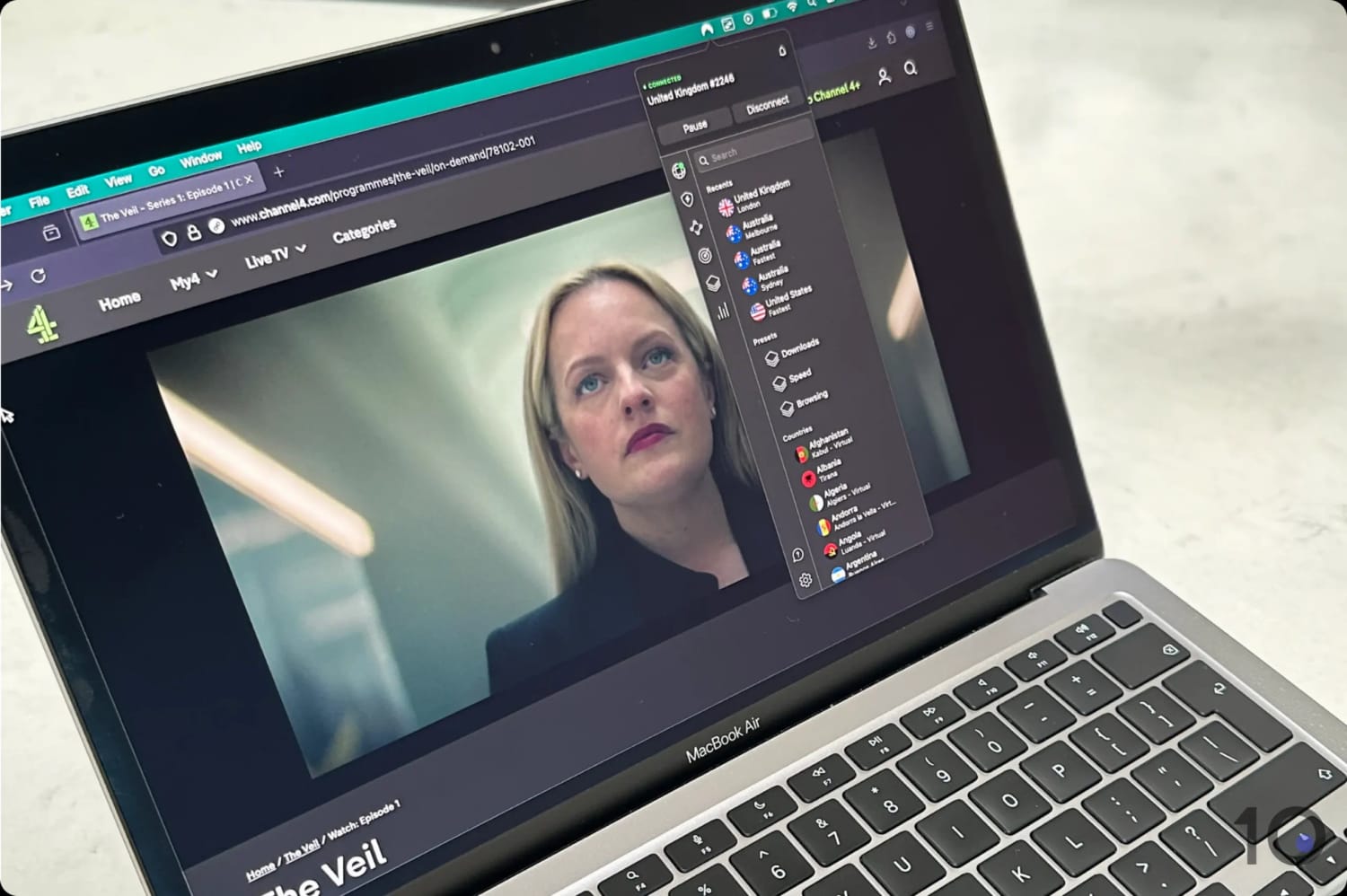
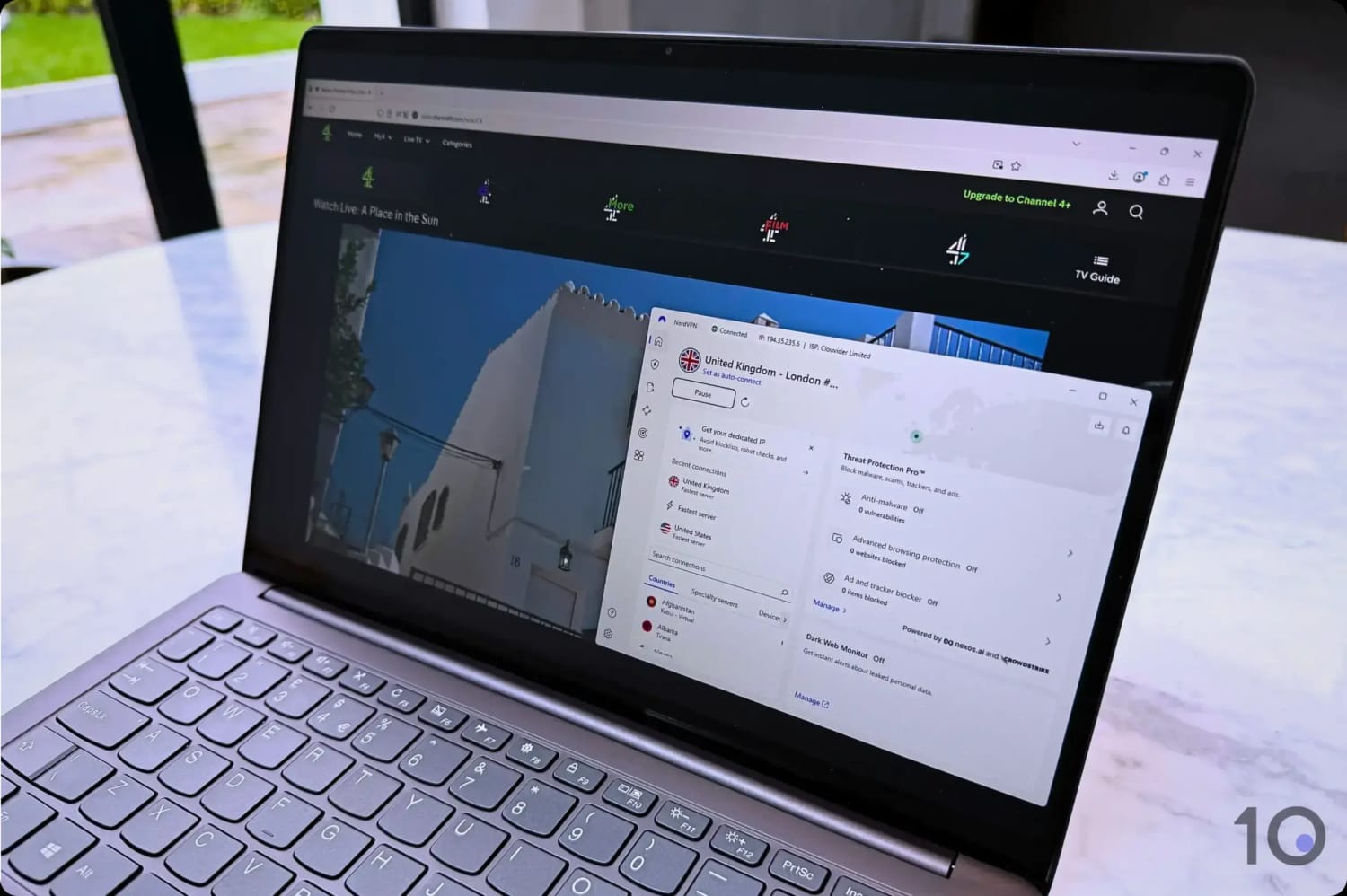
NordVPN easily unblocked Channel 4 from abroad.
Large Pool of Fast UK Servers
NordVPN’s UK server offering is one of the best on the market, with hundreds of servers spread across Edinburgh, Glasgow, London, and Manchester.
Each of these server locations delivered excellent internet speeds that resulted in smooth and buffer-free streaming.
NordVPN’s UK server offering is one of the best available on the market, and the resulting internet speeds are a testament to this.
Whether you’re in the US, Europe, or Asia, you’re almost guaranteed maximum streaming quality every time.
We recorded an average speed drop of only 10% connecting into the UK from abroad. This is a fantastic measurement for a VPN, just shy of ExpressVPN’s fastest speeds.
Free Remote Access via Meshnet
Although it’s not in the same ballpark as the cheapest VPNs, NordVPN is competitively priced at $3.39/mo over 24 months.
But if you only need access to Channel 4 for a handful of days, you can actually take advantage of a 3-day NordVPN free trial if you sign up via the Google Play Store. You can then use your new account details on the VPN’s other apps.
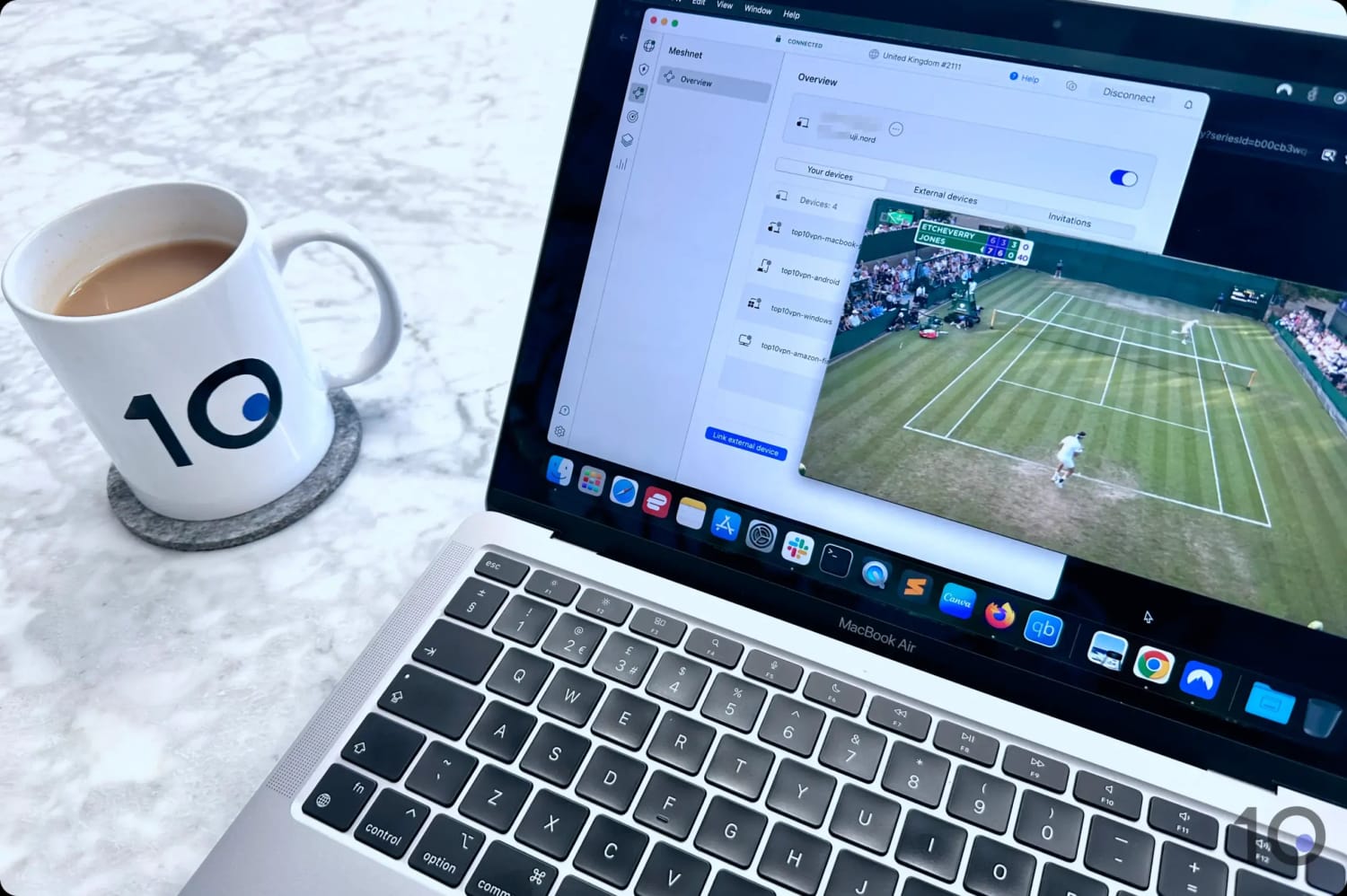
Equally, Meshnet allows you to connect to your home devices remotely for free.
If you’re traveling abroad, or you know someone in the UK, you can use the free Meshnet software to access a device in the UK remotely and use its internet connection to watch Channel 4.
We used NordVPN’s Meshnet to watch UK TV abroad for free.
NordVPN’s compatibility isn’t as advanced as ExpressVPN’s, though. Crucially, there’s no dedicated router app available, which makes using the VPN on Roku sticks a pain in the neck, quick frankly.
At least, there are good Fire TV and Apple TV apps available, and easy-to-use web browser extensions.
ExpressVPN clocked the fastest VPN speeds connecting into the UK, especially from far afield like the US, Canada, and Australia.
We consistently achieved a sharp, uninterrupted stream over hundreds of hours of testing, with the VPN’s apps bypassing Channel 4’s geo-blocks at every attempt.
And thanks to its unique software for routers, you can use ExpressVPN more easily on trickier devices like Roku sticks and Chromecasts.
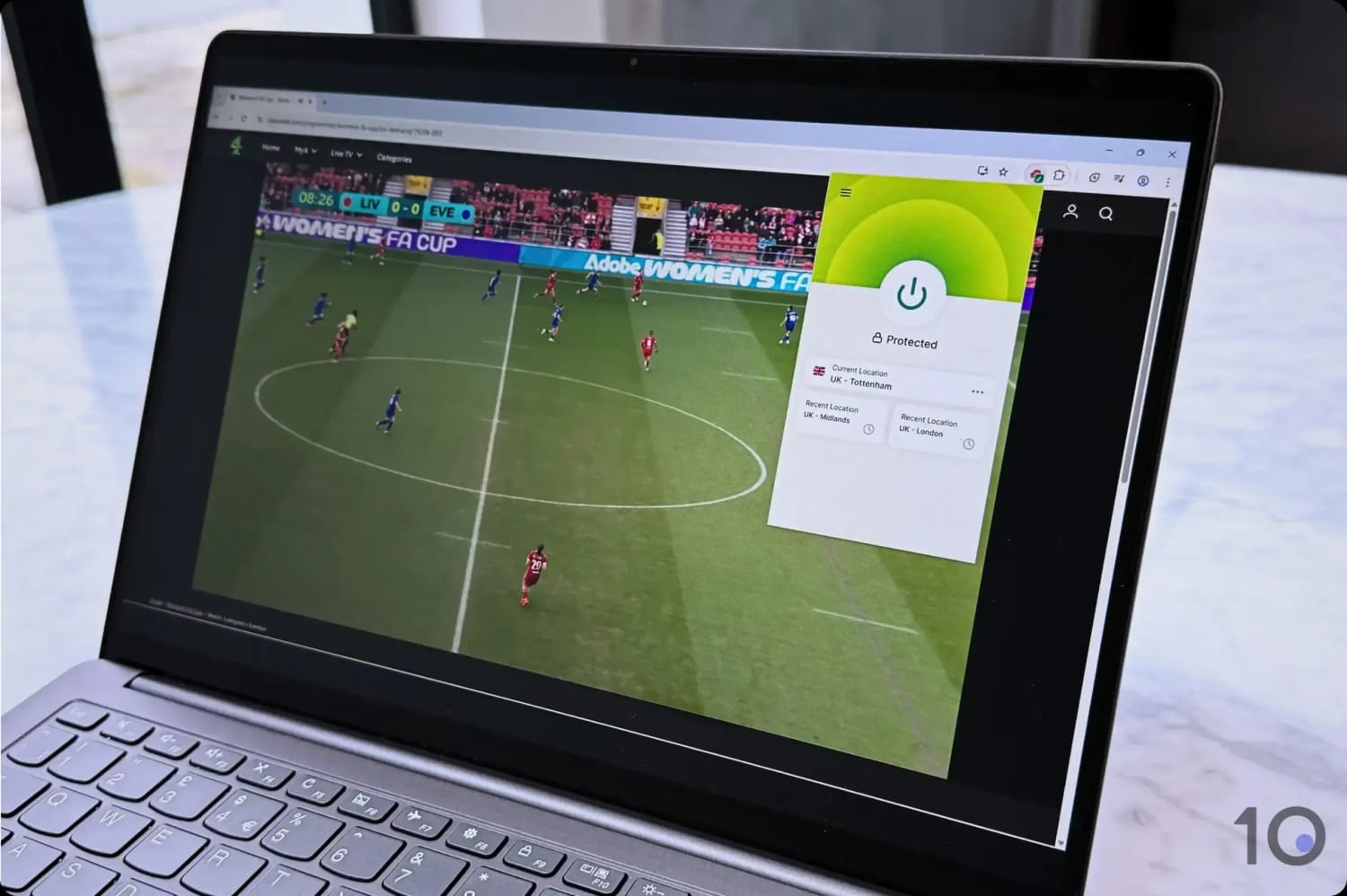
ExpressVPN unblocked Channel 4 very smoothly.
Extremely Fast Speeds on Its UK servers
Despite having servers in only two UK cities (Coventry and London), there is clearly an elevated number of them to deliver high resolution streaming, even during peak hours.
ExpressVPN’s servers in the UK connect instantly.
We never experienced any server congestion and the quality of our streams was impeccable, even watching live events like the British Grand Prix.
It’s no surprise that ExpressVPN offers the best internet speeds from abroad into the UK. While connected to its UK servers, our internet speed dipped by a mere 7%.
Moreover, ExpressVPN is simply exceptional at beating UK geo-blocks. Not only does it work with Channel 4, ITVX, and BBC iPlayer, but it’s one of the few VPNs that still works with Sky Go.
Impressive Usability & Device Compatibility
ExpressVPN is widely compatible across devices and platforms, which is ideal for streaming Channel 4 on a range of different devices.
In our opinion, its native apps are the best designed and most user-friendly. They’re available for desktop (Windows and macOS), mobile (Android and iOS), Fire TV, Android TV and Apple TV.
You can even use ExpressVPN on Xbox, PlayStation, and Roku, by making use of its fantastic and industry-only VPN app for routers.
Alternatively, and actually easier than setting up the VPN on your router, you can use ExpressVPN’s MediaStreamer, a Smart DNS proxy that continues to unblock British streaming services like Channel 4.
Don’t let the budget price tag fool you, Surfshark is another heavy hitter for bypassing Channel 4’s VPN blocks.
Most of its 440 UK servers handled Channel 4’s restrictions effortlessly. The odd one did get blocked, though.
Despite very good test performances, Surfshark remains a step behind ExpressVPN and NordVPN due to slower long-range speeds and the lack of Channel 4 support on its Smart DNS service.
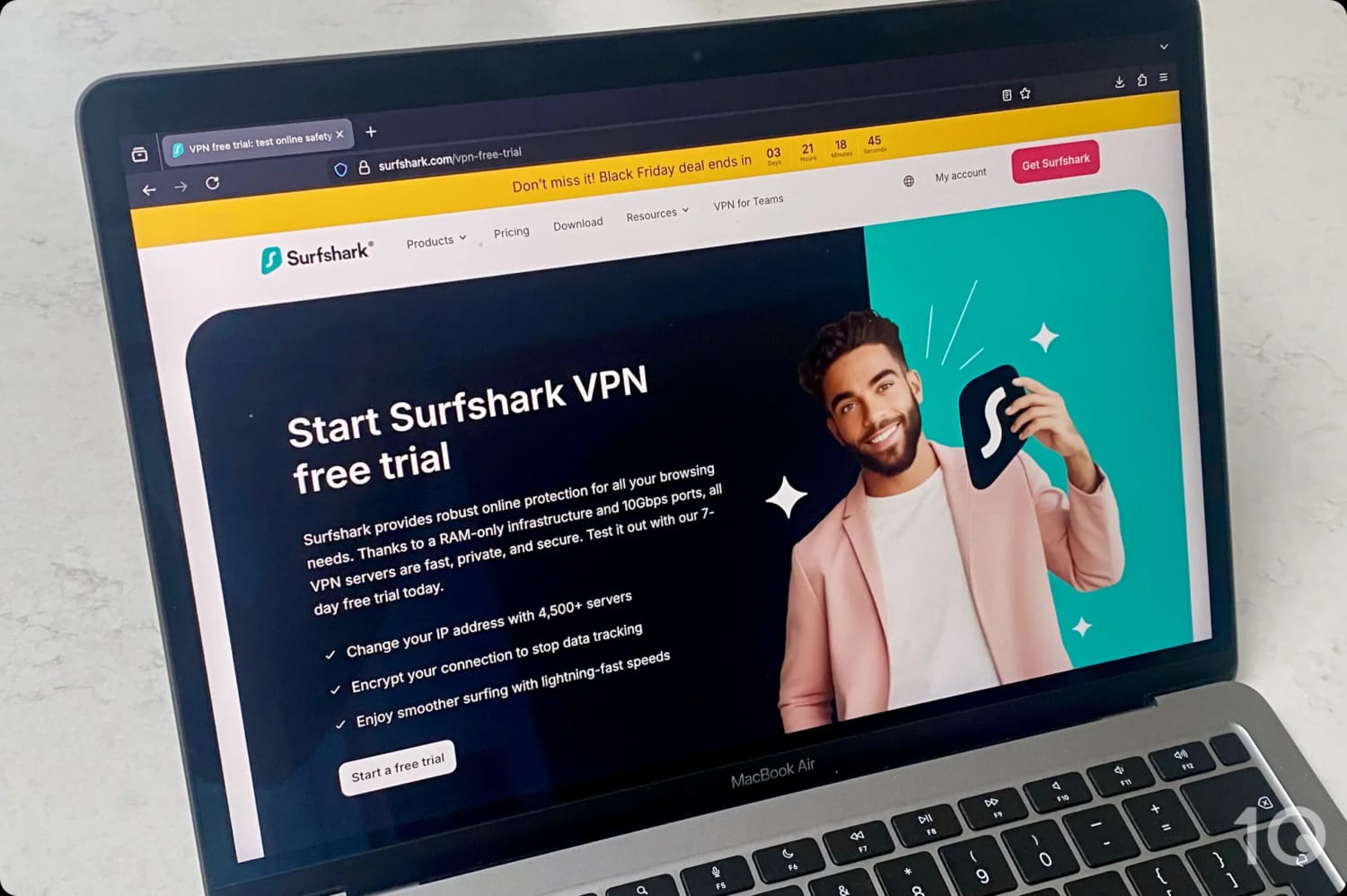
You can enrol directly via the website or app stores with full immediate access. In contrast, ExpressVPN forces a “mobile-first” signup before you can use the trial on other devices.
If you’re on a computer, trialing Surfshark is undoubtedly quicker. The trial doesn’t apply to pay-monthly plans, thought, so remember to cancel to avoid being billed for a full subscription.
Intuitive Apps but Limited Compatibility
Surfshark’s apps are built similarly to its sister service, NordVPN. The home screen is occupied by a number of settings, although finding a server to connect to is simple.
Not every server connects instantly, though, and sometimes we had wait over five seconds to get a UK IP address. ExpressVPN’s server connections were noticeably faster.
However, Surfshark’s real hurdle is its restricted device support: it doesn’t offer a router app and its Smart DNS proxy doesn’t work with UK content platforms.
To stream Channel 4 on a PlayStation, Xbox, or Roku, you’ll be forced into a tedious manual router configuration.
But why even bother going through that pain? ExpressVPN’s MediaStreamer and plug-and-play router app make the whole process so much smoother.
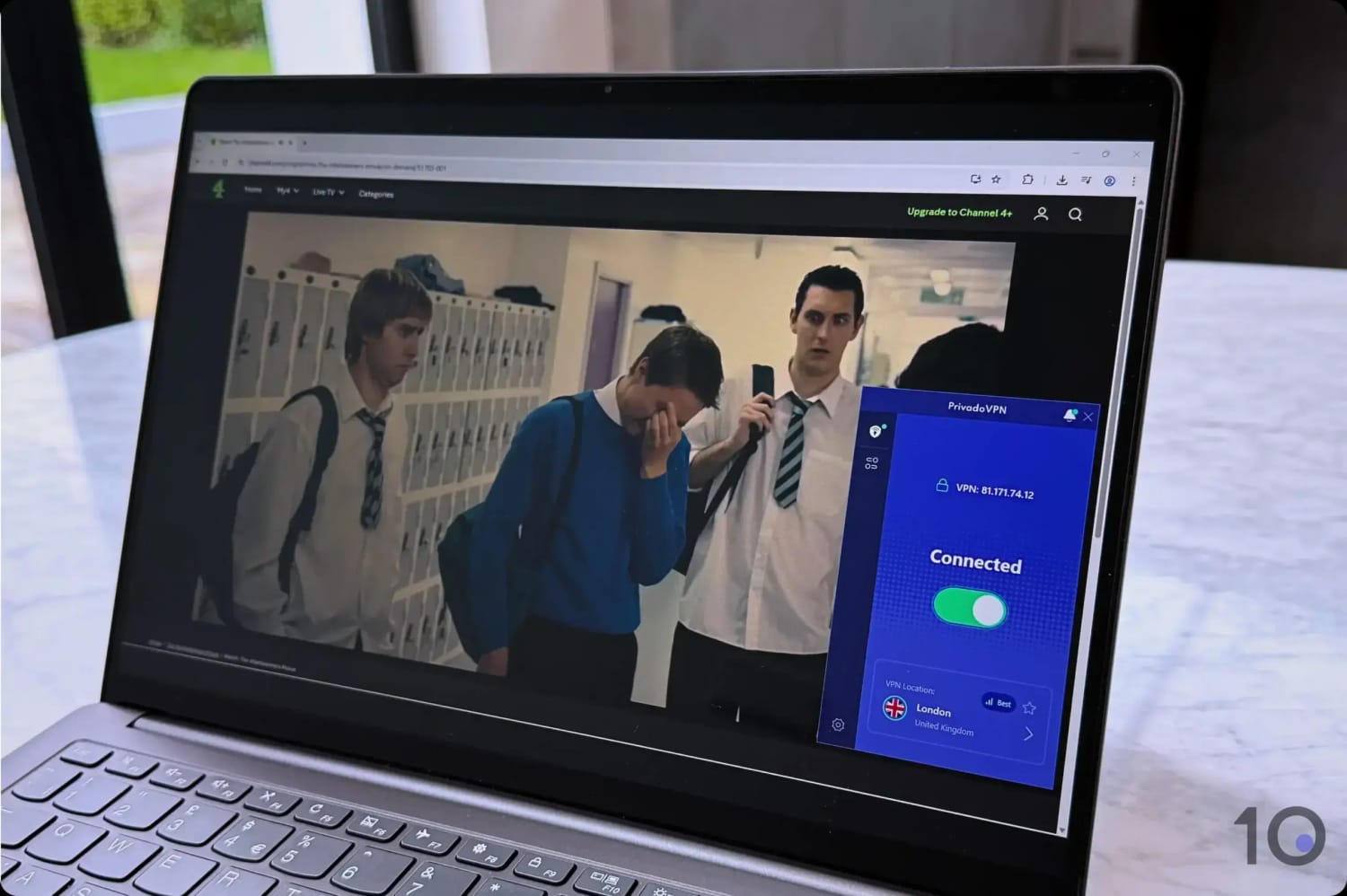
Based on our latest rounds of testing, the best completely free VPN to unblock Channel 4 from abroad is PrivadoVPN.
Right now, you can count on PrivadoVPN’s free London server to deliver fast speeds and consistent access to Channel 4.
There are a number of limitations that will not suit frequent streamers and VPN users, but for watching a one-off live broadcast PrivadoVPN isn’t bad at all.
PrivadoVPN’s free London server worked surprisingly well with Channel 4.
Unexpectedly Quick Streaming Speeds
Usually, free VPN servers are relatively slow due to the number of users connected to them.
This wasn’t the case with PrivadoVPN’s UK server: speeds were right up there with some of the best paid VPN services.
On average, our speed slowed down by 11%, which is a truly remarkable result.
Sure, speeds fluctuated here and there, but overall we were genuinely impressed with the VPN’s performance.
Keep in mind that with one single UK server, things may change quickly: PrivadoVPN’s UK IPs may work today, but be blacklisted tomorrow.
Bandwidth Restrictions
All is well and good with PrivadoVPN until you hit its 10GB monthly data cap, which will put serious limitations on your streaming options.
Roughly, 10GB of data equals four hours of HD streaming a month.
Moreover, you’ll have to manually renew the data allowance each month. For some bizarre reason, it doesn’t renew automatically like it does with other free VPNs.
Depending on your streaming device, you may also struggle to use PrivadoVPN given its limited compatibility. That said, on computers and smartphones it will work just fine.
Watching Channel 4 live or on-demand from any country outside the UK is easy. All you need is a Channel 4 login and a VPN that unblocks the content platform.
To open an account with Channel 4, you only need to provide an email address and UK postcode.
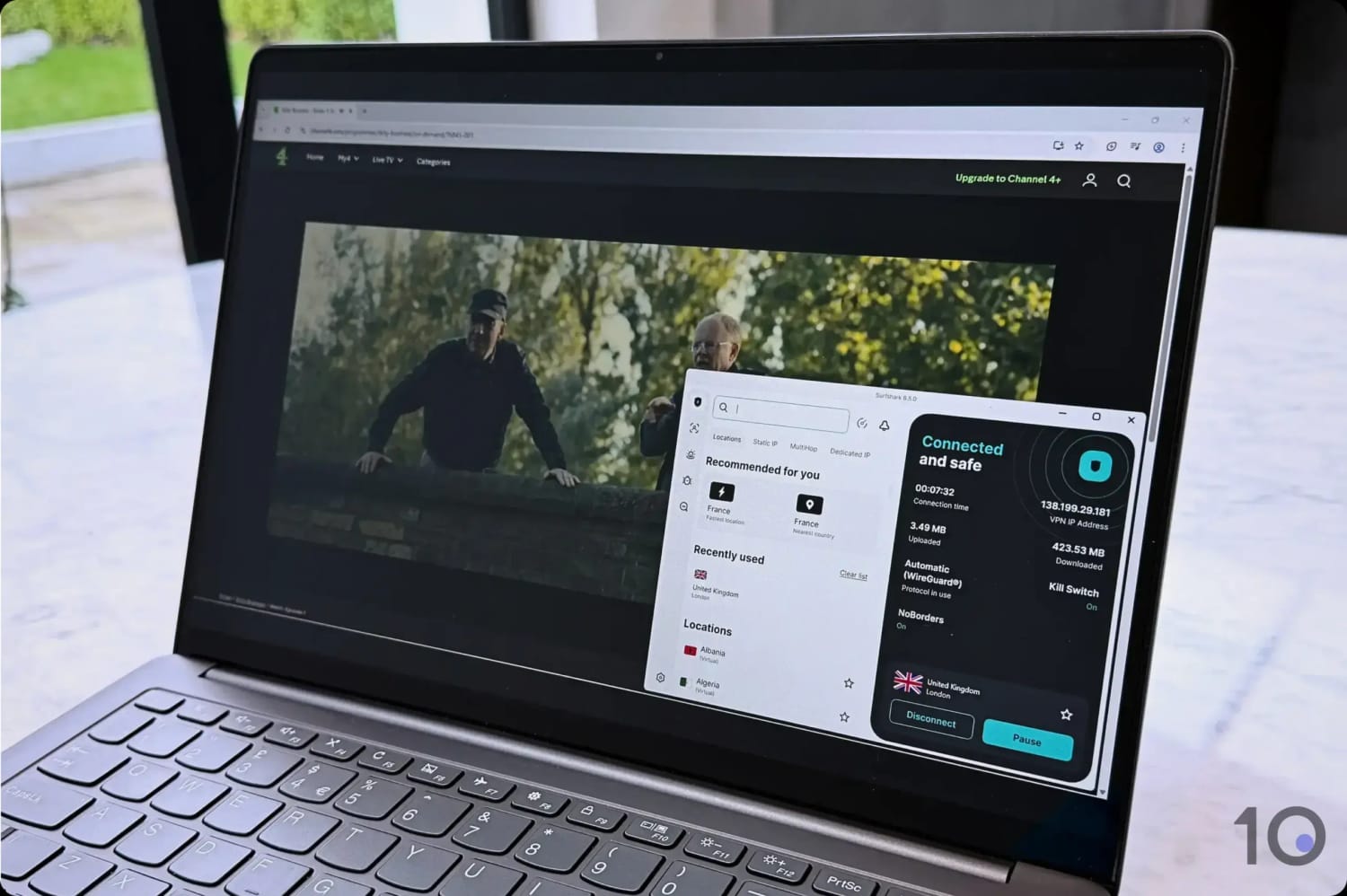
Using NordVPN to bypass Channel 4’s geo-blocks.
Depending on the device you’ll be using, instructions on how to access Channel 4 vary, especially for devices that don’t support VPN software.
Below you’ll find step-by-step guides for several popular devices. If at any point you see an error code, try some of our solutions to fix your VPN.
Remember to disable any ad blocker before streaming as Channel 4 prevents videos from loading if it detects one in use.
Desktop (PC & Mac)
One of the easiest ways to watch Channel 4 abroad is to do it on your PC or Mac, as it doesn’t involve changing app store countries.
Instructions: How to Unblock Channel 4 on PC/Mac
Get a VPN that works with Channel 4. The best right now is NordVPN.
Download and install the VPN.
Launch the app, sign in, and connect to a UK server. If there are servers optimized for British TV, or Channel 4 specifically, select one of these.
Enable the Kill Switch. This prevents your foreign IP address unexpectedly leaking.
Go to www.channel4.com. Sign in, or create a free account if necessary.
Start streaming.
Mobile (iOS & Android)
Channel 4’s mobile app is only available in the UK and ROI Apple App and Google Play stores.
To avoid having to potentially change app store country, which is a real pain, we recommend streaming Channel 4 via your mobile browser (Chrome, Safari, etc.).
Unlike other streaming services, Channel 4 doesn’t open its video links in its app and simply streams content within the browser.
Instructions: How to Unblock Channel 4 on iOS/Android
Download and install a VPN. As with laptops, NordVPN is our top choice.
Launch the VPN app, log in, and connect to a UK server location.
Open Channel 4. Launch the app if you already have it installed, otherwise go the website on your mobile browser.
Start streaming.
Fire TV Stick
If you have an Amazon account registered outside the UK, you won’t find the Channel 4 app in the Amazon Appstore. This is the case even if you switch to a UK IP address.
Instead, you’d have to either change your existing account’s region to the UK, or create a new UK account altogether on www.amazon.co.uk.
But since Channel 4 allows you to watch content in-browser, even on Fire TV, the process is a lot simpler. Simply, follow the instructions for mobile, using your Fire TV’s Silk Browser to stream Channel 4.
The only difference is that ExpressVPN has a nicer and smoother VPN app for Firestick than NordVPN.
Apple TV
Similarly to Fire TV Stick, you can only get the Channel 4 app on Apple TV if you have a UK Apple ID.
Sadly AirPlaying Channel 4 content no longer works, so the best solution is to once again stream in-browser.
Smart TV & Game Consoles
If your device doesn’t support VPN applications, the easiest way to access Channel 4 is to use a Smart DNS proxy.
Smart DNS technology works by rerouting your DNS requests through a UK proxy server. While this also spoofs your location, Smart DNS is not the same as a VPN.
Unlike VPN software, Smart DNS won’t encrypt your connection and is therefore less secure. But it’s a useful way to stream geo-blocked content on devices like PlayStation and Xbox.
We tested all the Smart DNS proxies offered by VPN services and can tell you which work with Channel 4 and which don’t. Here’s the list:
CyberGhost Smart DNS
ExpressVPN MediaStreamer
NordVPN SmartDNS
PIA Smart DNS
StrongVPN StrongDNS
Surfshark Smart DNS
To set up Smart DNS, follow the instructions below. We used ExpressVPN on macOS as an example.
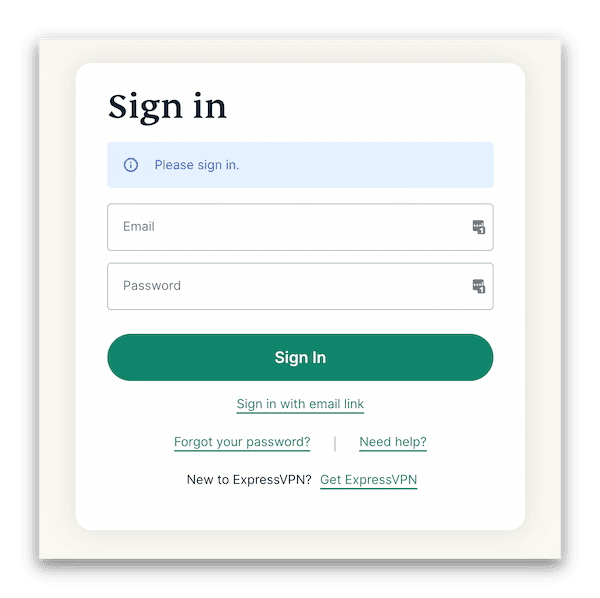
With an active ExpressVPN subscription, head to My Account on ExpressVPN’s website and sign in with your registered details.
Sign in to your ExpressVPN account via My Account.
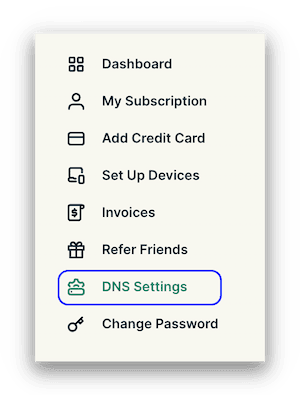
Once logged in, go to DNS Settings on the left side menu.
Select DNS settings from the left side menu.
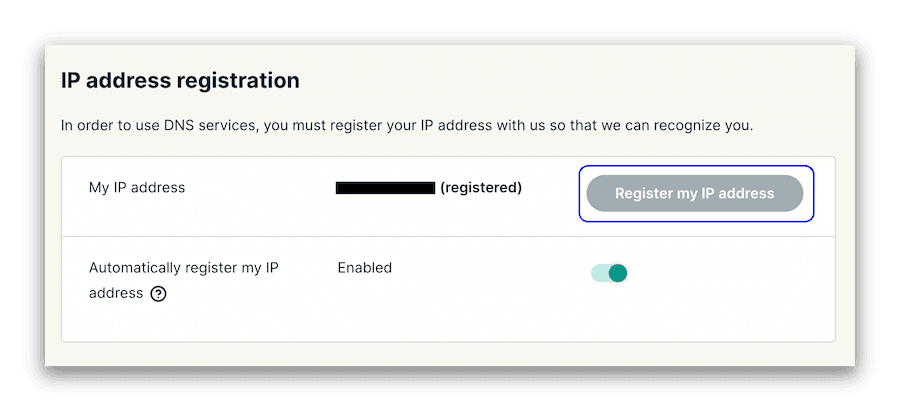
Under My IP address registration select Register my IP address and then toggle on Automatically register my IP address.
You need to register your IP address.
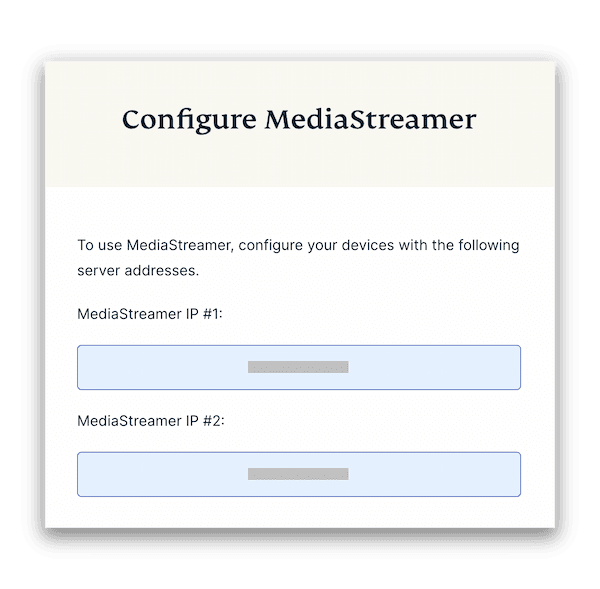
Head to the ExpressVPN setup page. On the right side you will see Configure MediaStreamer with two DNS server IP addresses.
ExpressVPN provides two unique DNS server IP addresses – redacted here.
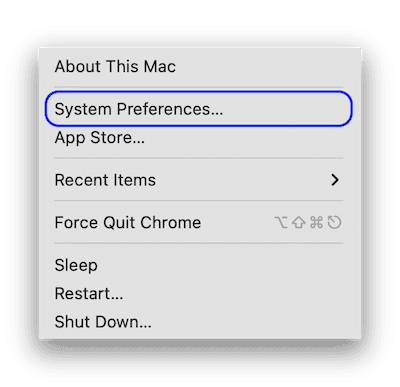
You can find System Preferences via the Apple logo in the top left corner.
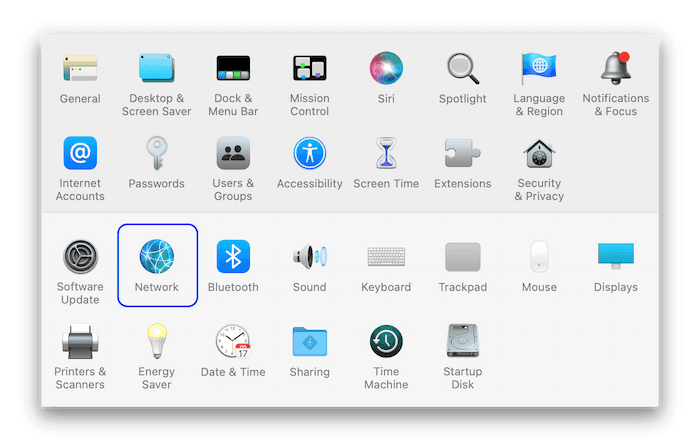
Select Network > Advanced.
Select ‘Network’ from the listing of macOS system preferences.
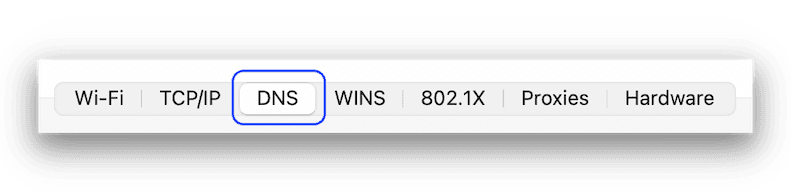
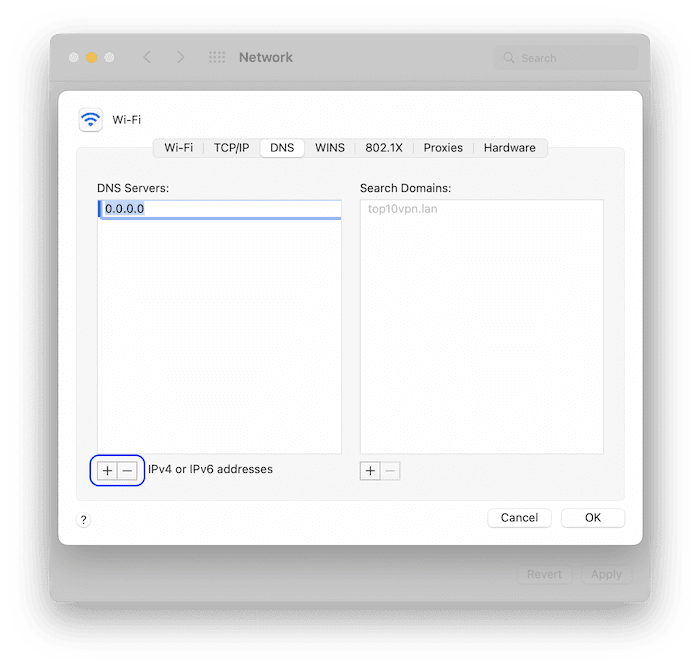
On the navigation bar, click DNS. If there is an existing DNS server, make a note of it. Once this is done, remove it by selecting — in the bottom left.
Select DNS from the navigation bar.
Click + and paste the first DNS server IP address you saw under the Configure MediaStreamer section. Then do the same with the second DNS server and click OK.
You can remove and add DNS server IP addresses.
You have now set up ExpressVPN’s MediaStreamer on your macOS device.
You can find detailed instructions on how to setup Smart DNS on each VPN’s website:
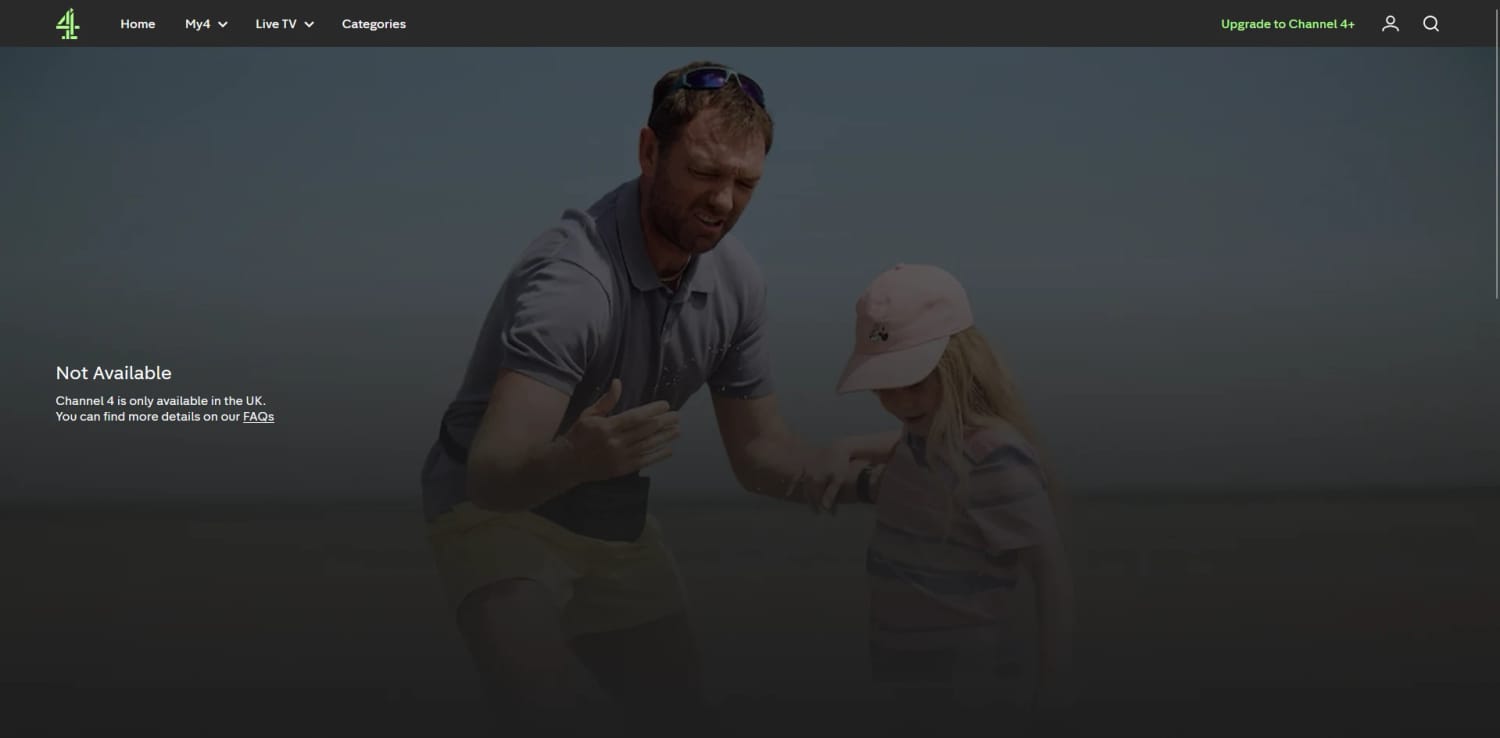
As we mentioned earlier, many VPNs no longer unblock Channel 4. You’ll know your VPN isn’t working if you see this error message:
The “Not Available. Channel 4 is only available in the UK.” error message
This happens when Channel 4 has detected your VPN IP address and blocked it from accessing its content.
To fix this, you’ll need a streaming-optimized VPN that isn’t blocked by Channel 4, like the ones we recommend above.
In saying that, there’s a chance that by adjusting your VPN’s or your device’s settings, you can bypass Channel 4’s geo-restrictions.
Try one of our fixes below to get your VPN working again, assuming it still has UK IP addresses unknown to Channel 4.
Switch to a Different UK Server
If the reason your VPN isn’t working is because Channel 4 has blocked one your VPN’s British IP addresses, then connecting to a different UK server may fix the problem.
Check for IP or DNS Leaks
Another reason your VPN may not be streaming Channel 4 content is because it’s leaking your true IP location. Run a VPN leak test to find out whether this is the issue or not.
Clear Your Cookies and Cache
If you previously accessed Channel 4, your web browser (or the Channel 4 app) will contain data from that prior visit. This can sometimes interfere with any subsequent attempt to unblock content.
Clearing all cookies and cache will remove any geolocation trackers. Remember to also disable geolocation services in your web browser.
Change VPN
If none of the solutions above worked for you, then the only thing left to do is to get a VPN that will definitely unblock Channel 4.
Both ExpressVPN and NordVPN regularly refresh their pool of British IP addresses in order to keep bypassing the strictest of UK geo-restrictions. You won’t really go wrong by choosing either.
What's Popular on Channel 4
Channel 4 has some of the UK’s most popular TV dramas, documentaries, sitcoms, and reality shows. It also regularly screens quality movies that you can watch for free.
Some of the most popular Channel 4 live and on-demand content includes:
24 Hours in Police Custody
British F1 Grand Prix
Dance Moms
Dirty Business
Gogglebox
Hollyoaks
Made in Chelsea
Married at First Sight
Nurse Jackie
Secret Genius
Suspect
The Great Pottery Throw Down
The Inbetweeners
Women’s FA Cup
How We Test VPNs for Channel 4
We put 61 VPNs through a rigorous testing process to identify the most capable at unblocking Channel 4 from anywhere in the world.
We evaluated each VPN across four distinct performance metrics:
Below is an explanation of why each category is important, including its weighting towards a VPN’s overall rating for Channel 4.
1. Unblocks Channel 4 (50%)
Test Conducted: We repeatedly connected to each VPN’s UK servers to see how well they avoided detection from Channel 4.
Why It’s Important: Channel 4 has aggressive geo-blocks that frequently blacklist common VPN IP addresses.
Optimal Result: Every UK IP address provided immediate, buffer-free access to Channel 4 on every UK server tested.
2. Speed (25%)
Test Conducted: We measured connection speeds across several global regions, analyzing both short-range and long-range connections into the UK.
Why It’s Important: High-speed connections are essential for buffer-free, Full HD streaming on Channel 4.
Optimal Result: A speed reduction of no more than 10% when connected to a UK server from a nearby country, and 20% from locations further afield.
3. UK Servers (15%)
Test Conducted: We tallied each VPN’s UK server count and city locations, then used IP checkers to verify successful UK IP assignment.
Why It’s Important: More servers reduce congestion and increase your chances of bypassing Channel 4’s aggressive VPN blocks.
Optimal Result: A network of hundreds of servers spread across multiple UK cities.
4. Device Compatibility (10%)
Test Conducted: We evaluated the VPN’s native apps and advanced features like Smart DNS and router compatibility.
Why It’s Important: Extensive device support ensures you can stream Channel 4 on hardware that doesn’t natively support VPNs.
Optimal Result: Native apps for Fire TV, Android TV, and Apple TV, plus a Smart DNS proxy and a dedicated router app.
FAQs
How Does Channel 4 Block VPN Traffic?
Channel 4 blocks VPN traffic to protect licensing agreements it has struck with content owners, and to promote the sale of its original content outside the UK.
To enforce these restrictions, the streaming service monitors IP addresses accessing its content. If it detects numerous simultaneous instances using the same IP address, it will blacklist it.
Channel 4 also runs checks on whether an IP address is “residential,” or if it belongs to a data center (VPN services mostly use data center IP addresses).
Finally, Channel 4 will also run IP addresses against a database of known VPN ones, automatically banning any matching IP.
In order to keep avoiding detection, the VPNs we recommend in this guide have to constantly update their UK IP addresses and obfuscate their traffic to make it appear as “normal.”
Is it Legal to Watch Channel 4 with a VPN?
Yes, it is legal to use a VPN to watch Channel 4. However, doing so goes against the Terms and Conditions of the streaming service.
Term 16.5 states that “you must not, and must not allow third parties to:
(a) access, view and/or purchase your Channel 4+ functionality or Channel 4 Content using a virtual proxy network.”
The worse that could happen is that your account is terminated, but over the years we have yet to hear of accounts being closed because of VPN use.
Can I Watch Channel 4 without a VPN?
When you’re overseas and want to catch up on Channel 4, you’ve got a couple of safe and legitimate alternatives to a VPN: Smart DNS or NordVPN’s Meshnet.
Smart DNS services, like Control D (from Windscribe), work by letting you modify your device’s DNS settings. This clever trick helps you bypass geo-restrictions and access content that’s usually blocked in your location.
The key aspect to remember with Smart DNS is that it doesn’t encrypt your internet traffic. It’s therefore less secure than a VPN service but costs roughly the same.
NordVPN’s Meshnet offers a different approach. It lets you connect directly to another device’s local network and funnel your internet traffic through it i.e. using its IP address and location.
For example, if you have a computer in the UK, you could connect to it from overseas using Meshnet and appear to be in the UK.
For Meshnet to work, both the device you’re connecting from and the device you’re connecting to need to have Meshnet installed and enabled.